
How to use the Student Portal
Set up your exam browser and sign in — step by step for your device.
“Wrong exam configuration”? Your config was updated
When the PrepDoctors team publishes a new exam configuration, your old one stops working: SEB still opens the portal, but shows the page below. Nothing is broken — you just need to switch to the new configuration file.
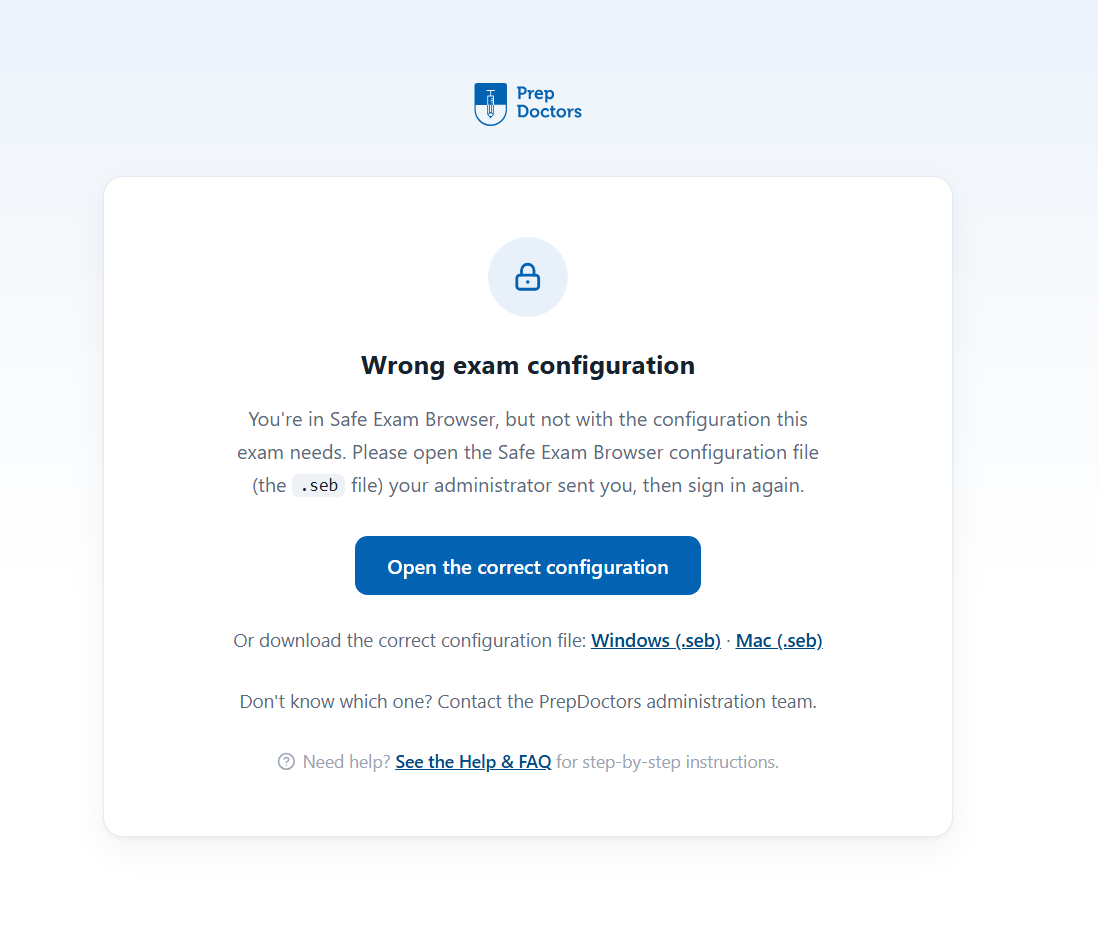
Download the new configuration and open it
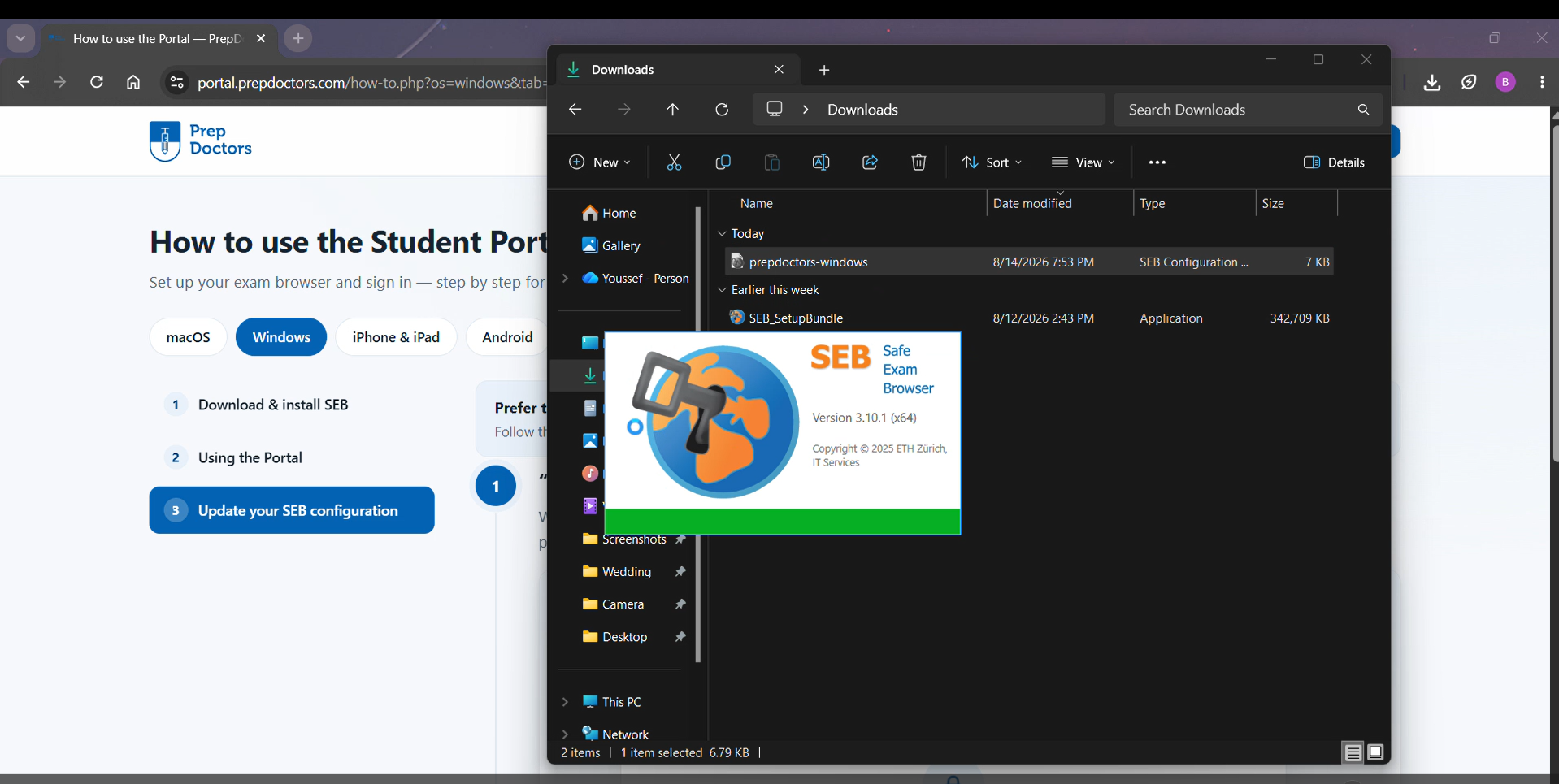
Download the current configuration file, then double-click the downloaded .seb file — it replaces your old configuration automatically, no password needed. Then reopen Safe Exam Browser: you're on the new configuration and can sign in as usual.
Download the configuration (.seb)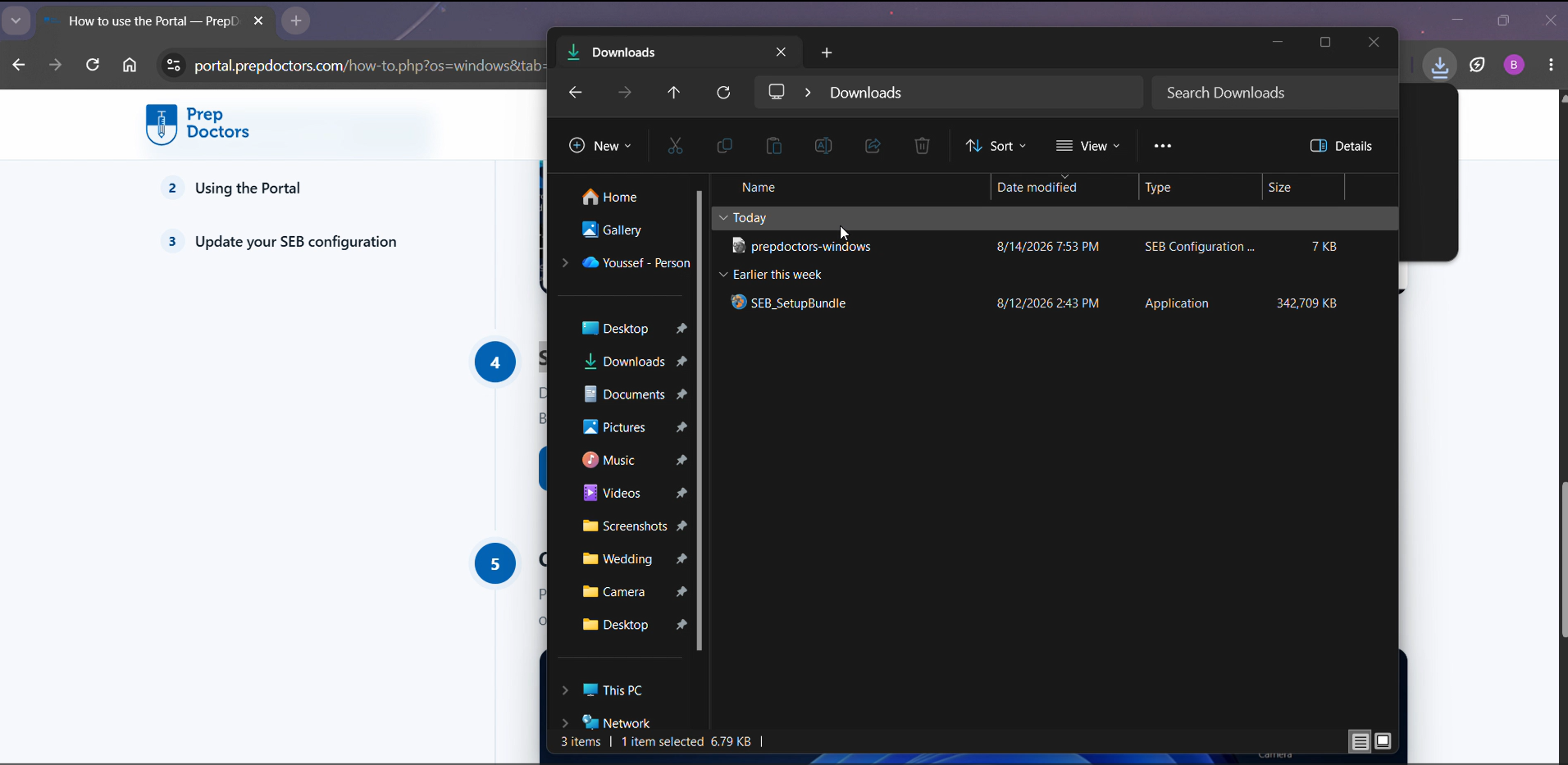
Asked for a password? Your PC has an old SEB configuration
Normally the file applies silently. If SEB instead shows “Password Required”, asking for the administrator password for the local client configuration, don't worry — there is no password to find. It means Safe Exam Browser on this PC still carries a configuration from an earlier install or another organisation, and that old configuration is refusing the new file. Click Cancel — the next steps replace it by hand in a minute or two.
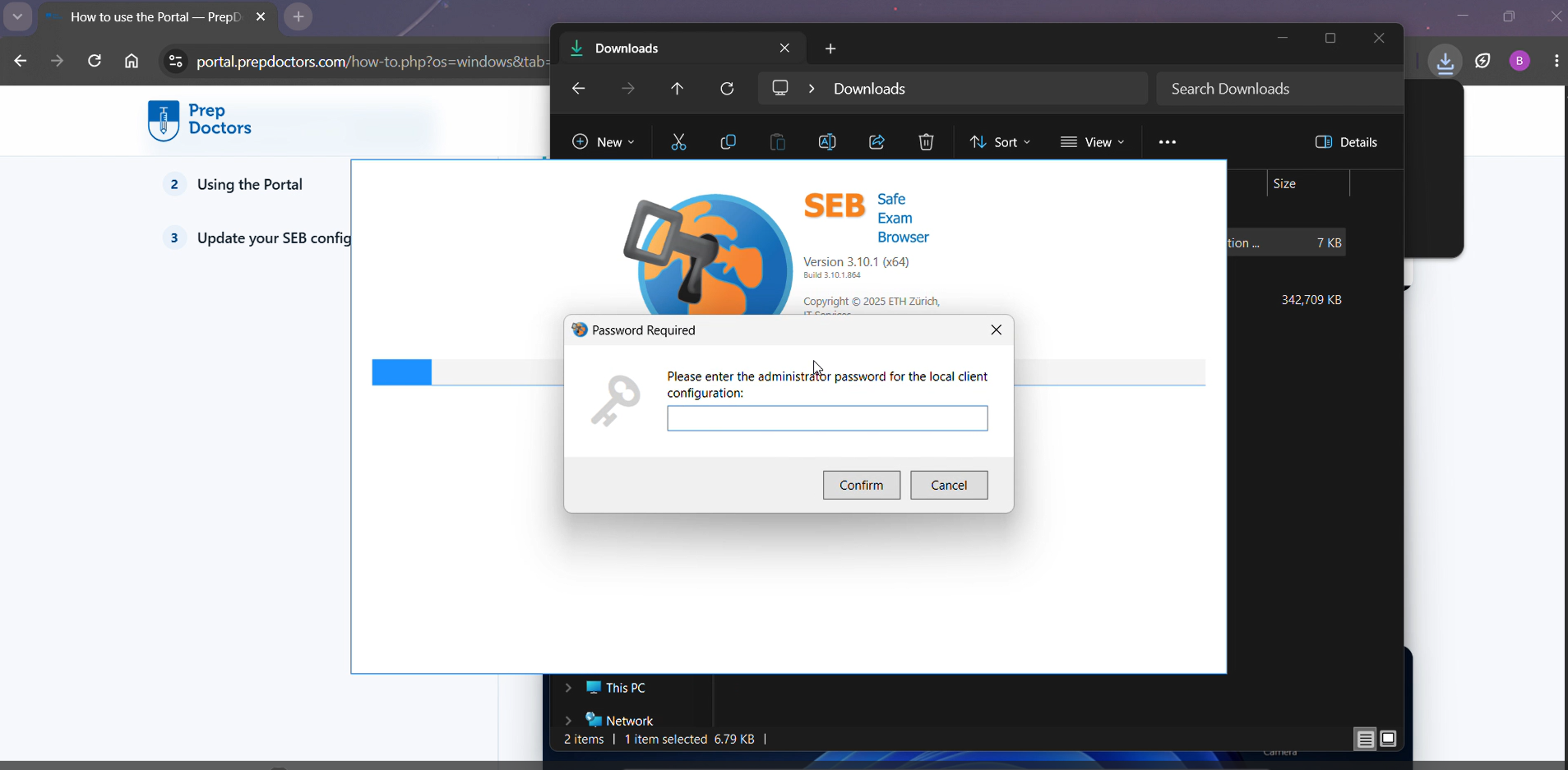
Open the SafeExamBrowser folder
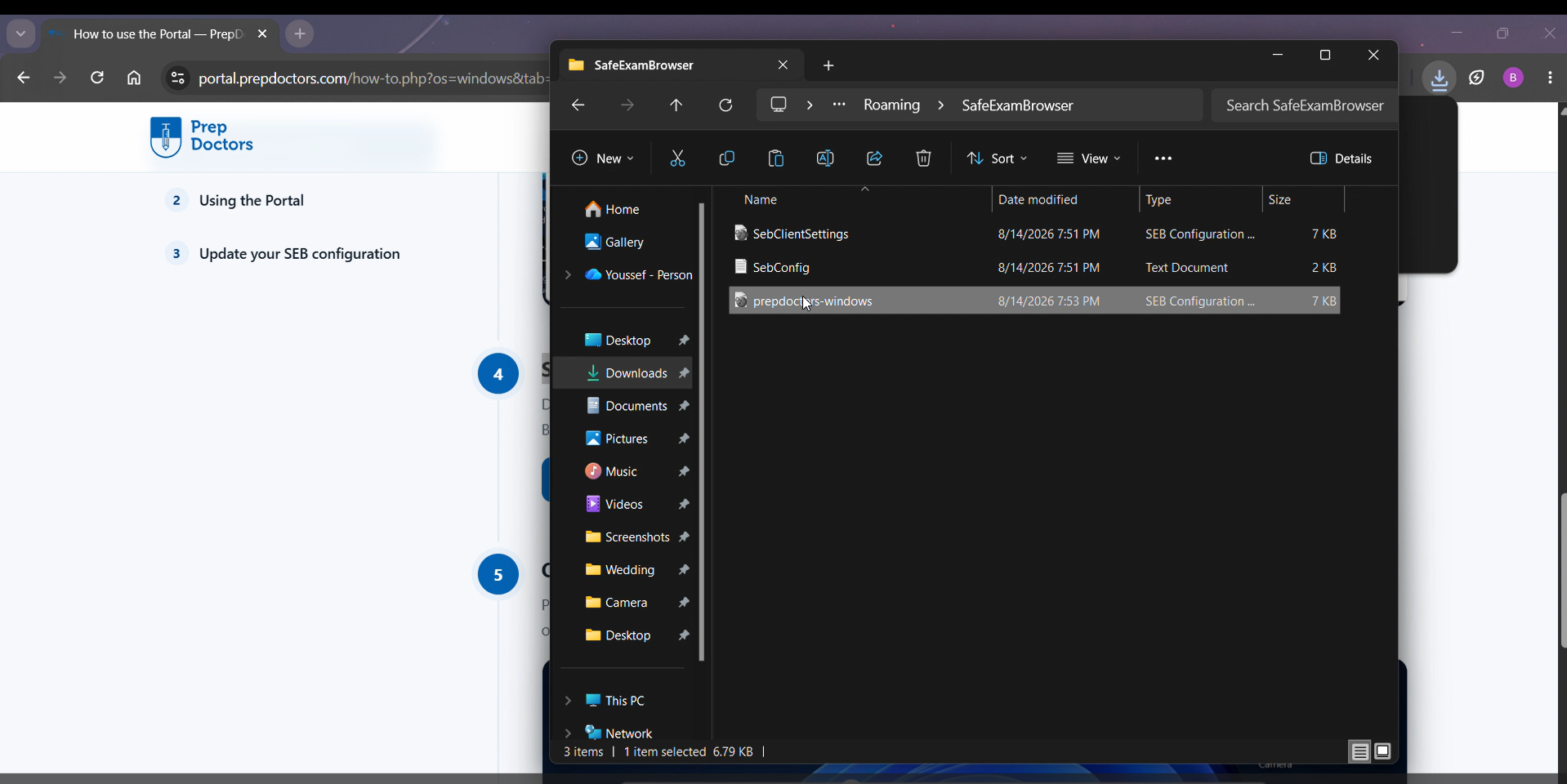
Open File Explorer, click the address bar at the top, type %APPDATA%\SafeExamBrowser and press Enter. That opens the folder C:\Users\<your user name>\AppData\Roaming\SafeExamBrowser — the user name in the middle is your own Windows user name, so it will differ from the screenshot (typing the %APPDATA% shortcut avoids having to know it).
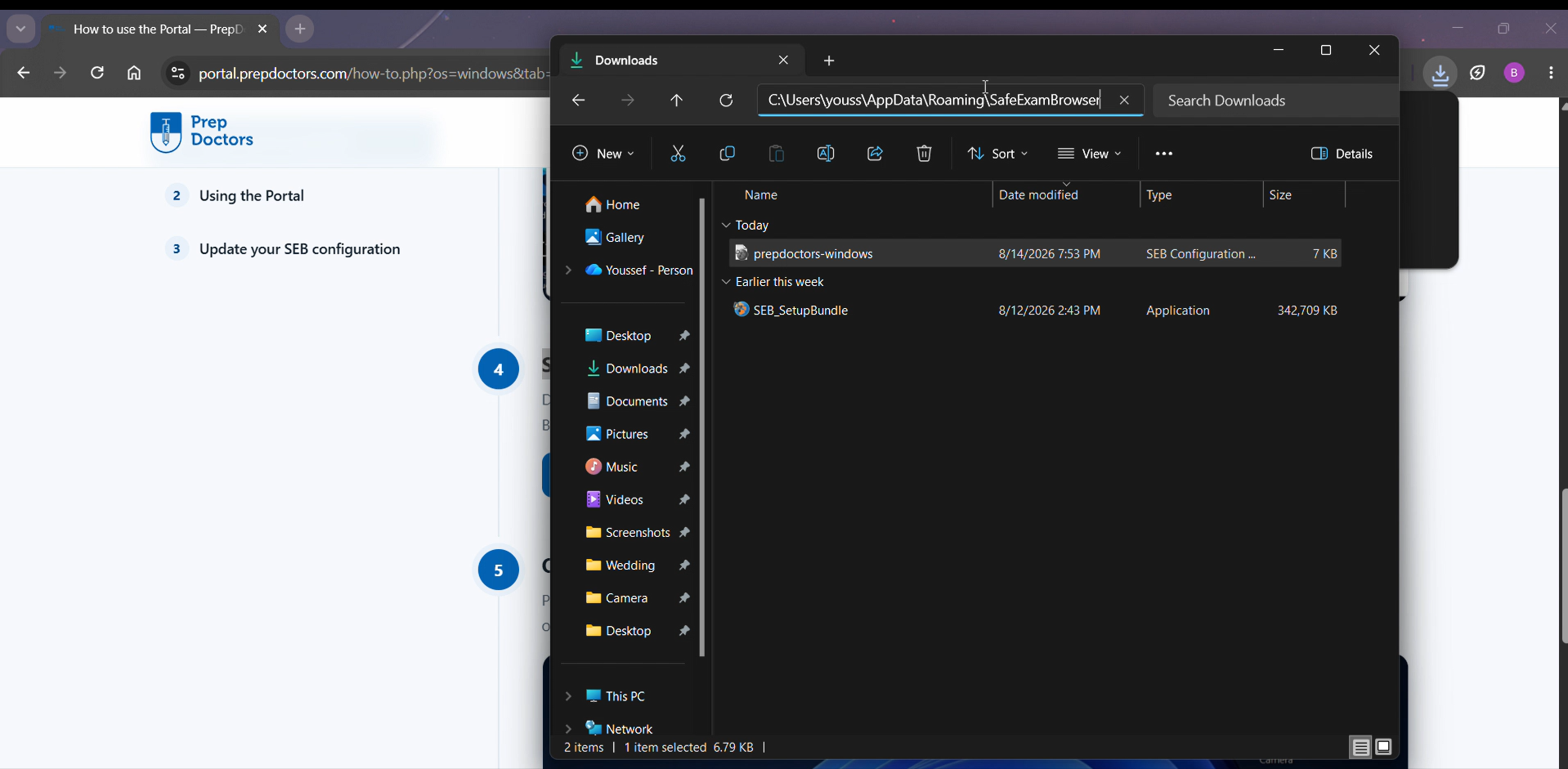
Copy the PrepDoctors configuration into that folder
Go to your Downloads folder, copy the downloaded prepdoctors-windows file (right-click → Copy, or Ctrl + C) and paste it into the SafeExamBrowser folder you just opened (Ctrl + V). It now sits next to the existing SebClientSettings file.
Rename the old SebClientSettings out of the way
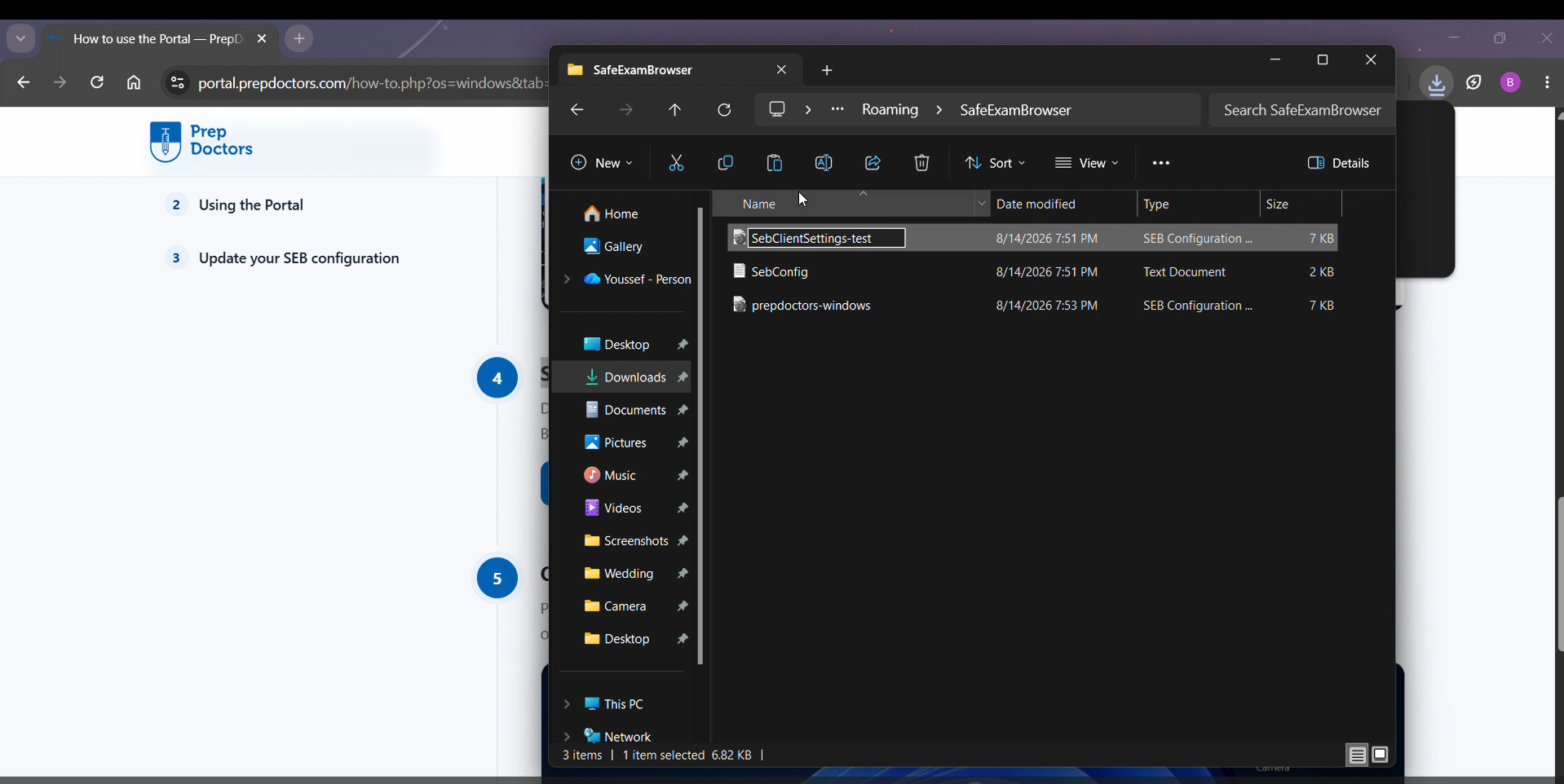
Right-click the existing SebClientSettings file, choose Rename and call it oldSebClientSettings. (Any name works — it just frees the original name for the PrepDoctors file.)
Rename the PrepDoctors file to SebClientSettings
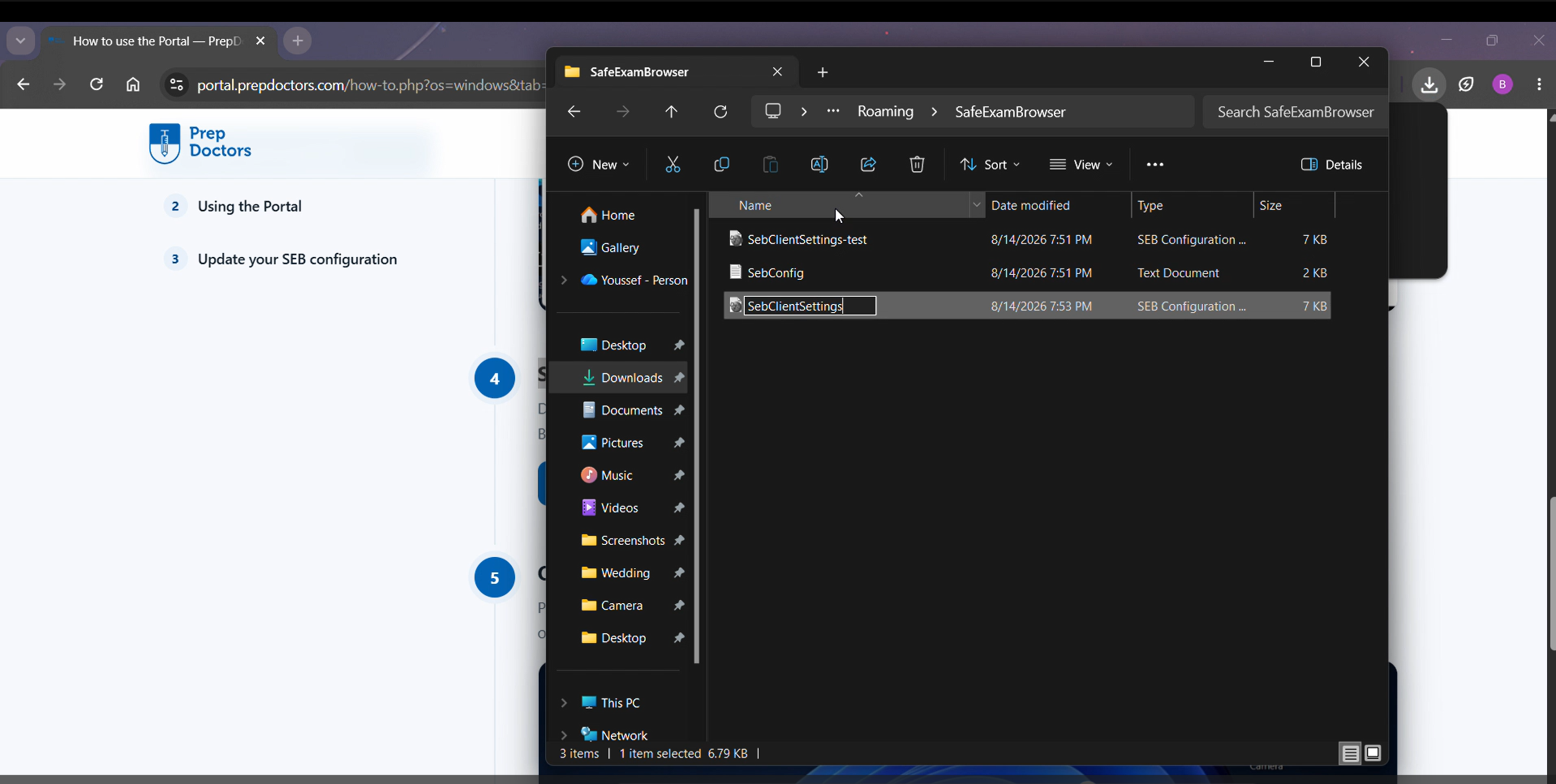
Now right-click the prepdoctors-windows file you pasted, choose Rename and type SebClientSettings — spelled exactly like the file you just renamed away. From now on SEB starts with the PrepDoctors configuration.
Delete the old file
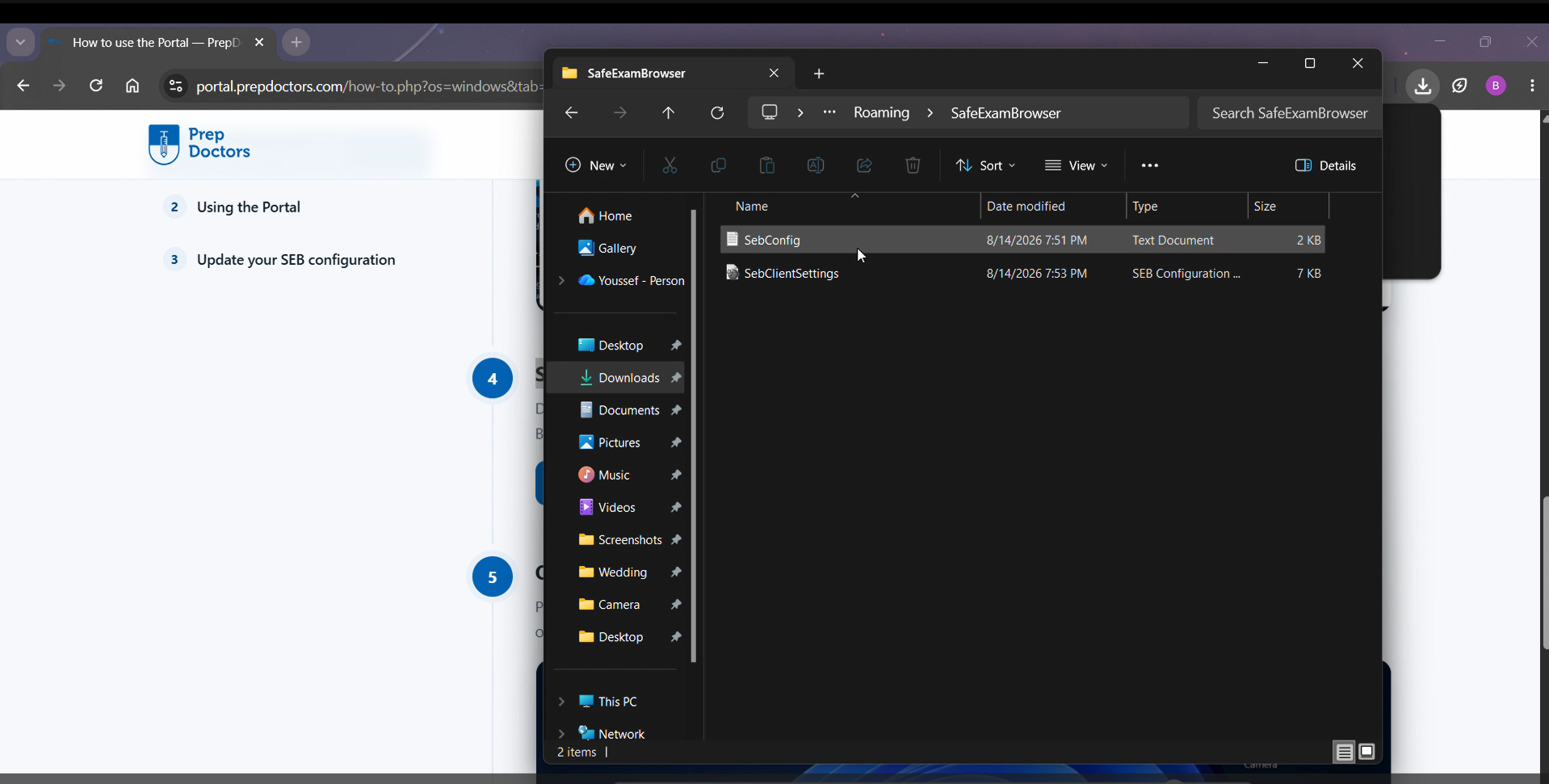
The renamed oldSebClientSettings is no longer needed — right-click it and choose Delete, leaving the new SebClientSettings in place.
Open Safe Exam Browser again
Start Safe Exam Browser from the Start menu as usual. No password prompt appears any more — the Student Portal opens and you can sign in with your email address or Student ID.
Questions? After signing in you'll find answers in the Help & FAQ, or contact the PrepDoctors administration team.