
How to use the Student Portal
Set up your exam browser and sign in — step by step for your device.
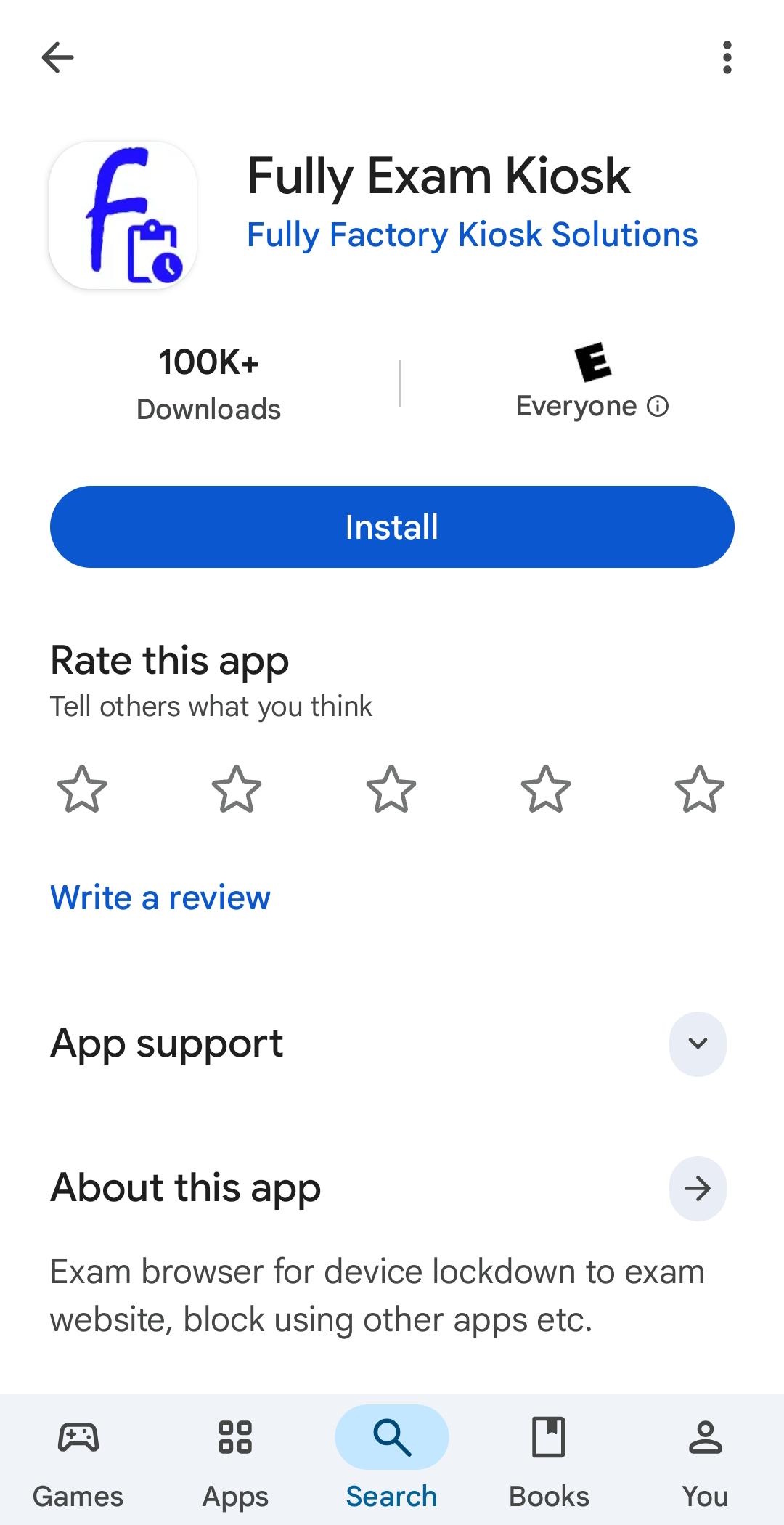
Install the Fully Exam Kiosk app
On your Android phone or tablet, install Fully Exam Kiosk (by Fully Factory Kiosk Solutions) from Google Play and tap Install. You can open it directly: Get the Fully Exam Kiosk app.
Download the exam configuration (.fek)
Download the PrepDoctors configuration file — it lands in your Downloads folder (you'll pick it there in the next step).
Download the configuration (.fek)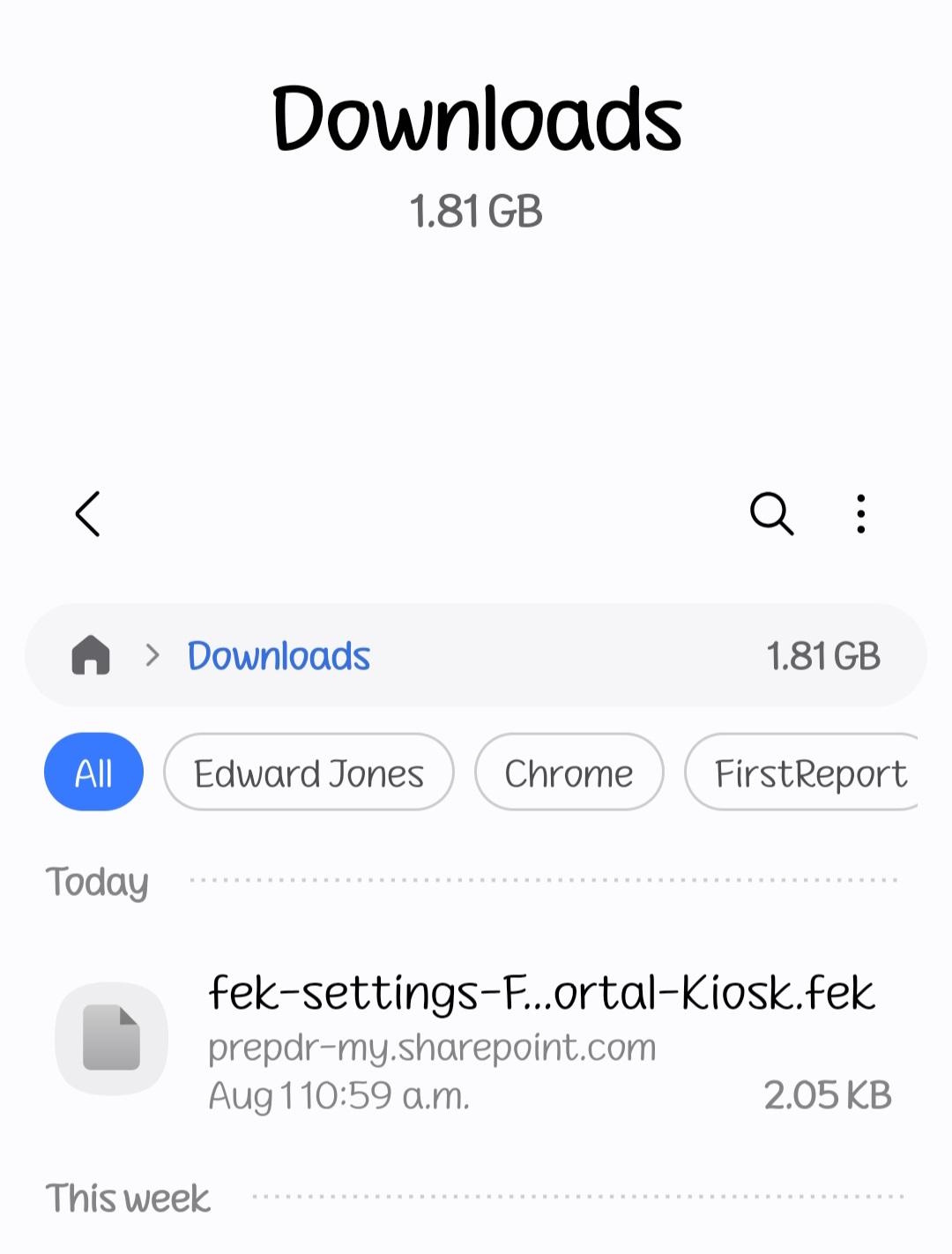
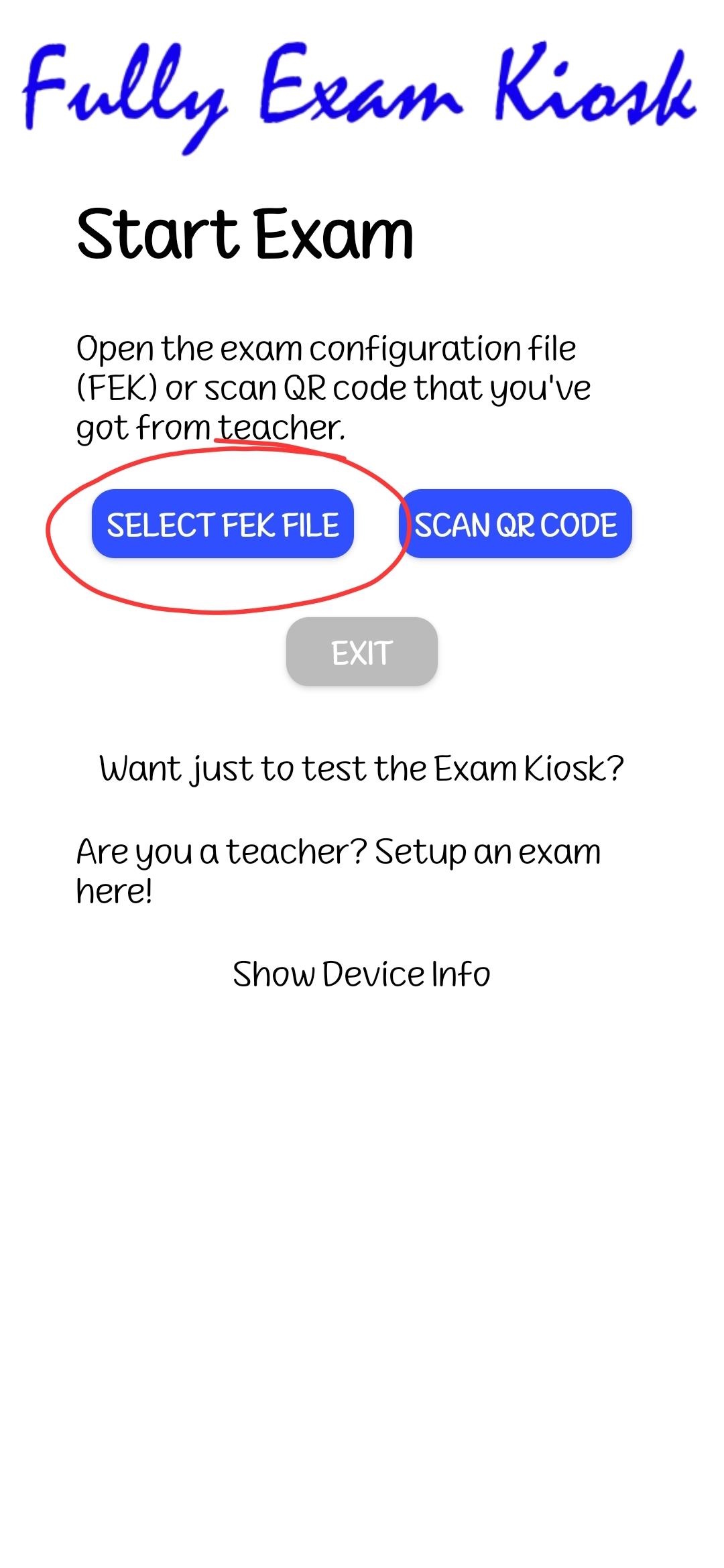
Open the app and select the FEK file
Open Fully Exam Kiosk. On the Start Exam screen, tap SELECT FEK FILE and pick the .fek file you just downloaded from your Downloads folder.
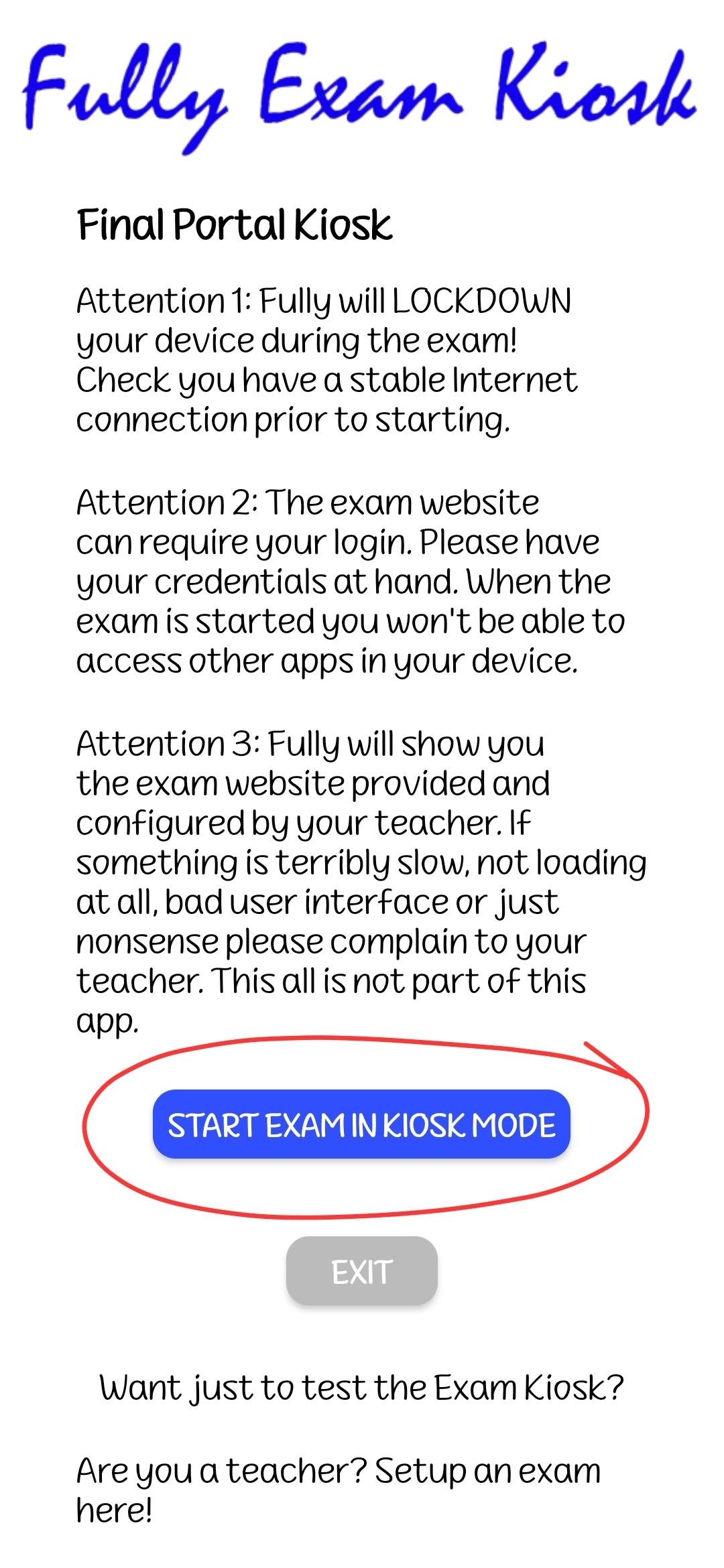
Start the exam in kiosk mode
Read the short notes on the screen (the app locks your device down while you're in the exam), then tap START EXAM IN KIOSK MODE.
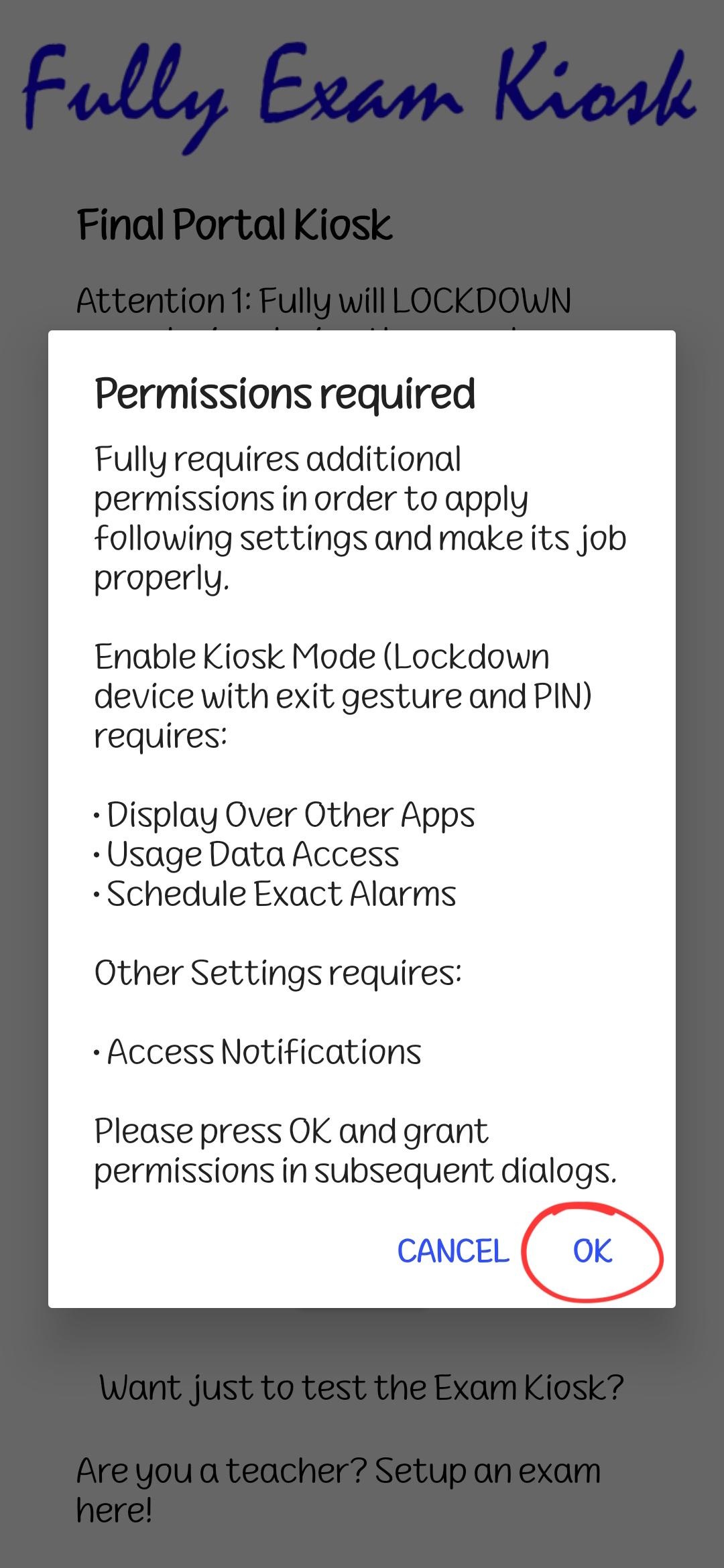
Accept the permissions
The first time, the app lists the Android permissions it needs to lock the device (display over other apps, usage data, alarms, notifications). Tap OK — the next steps grant them one by one.
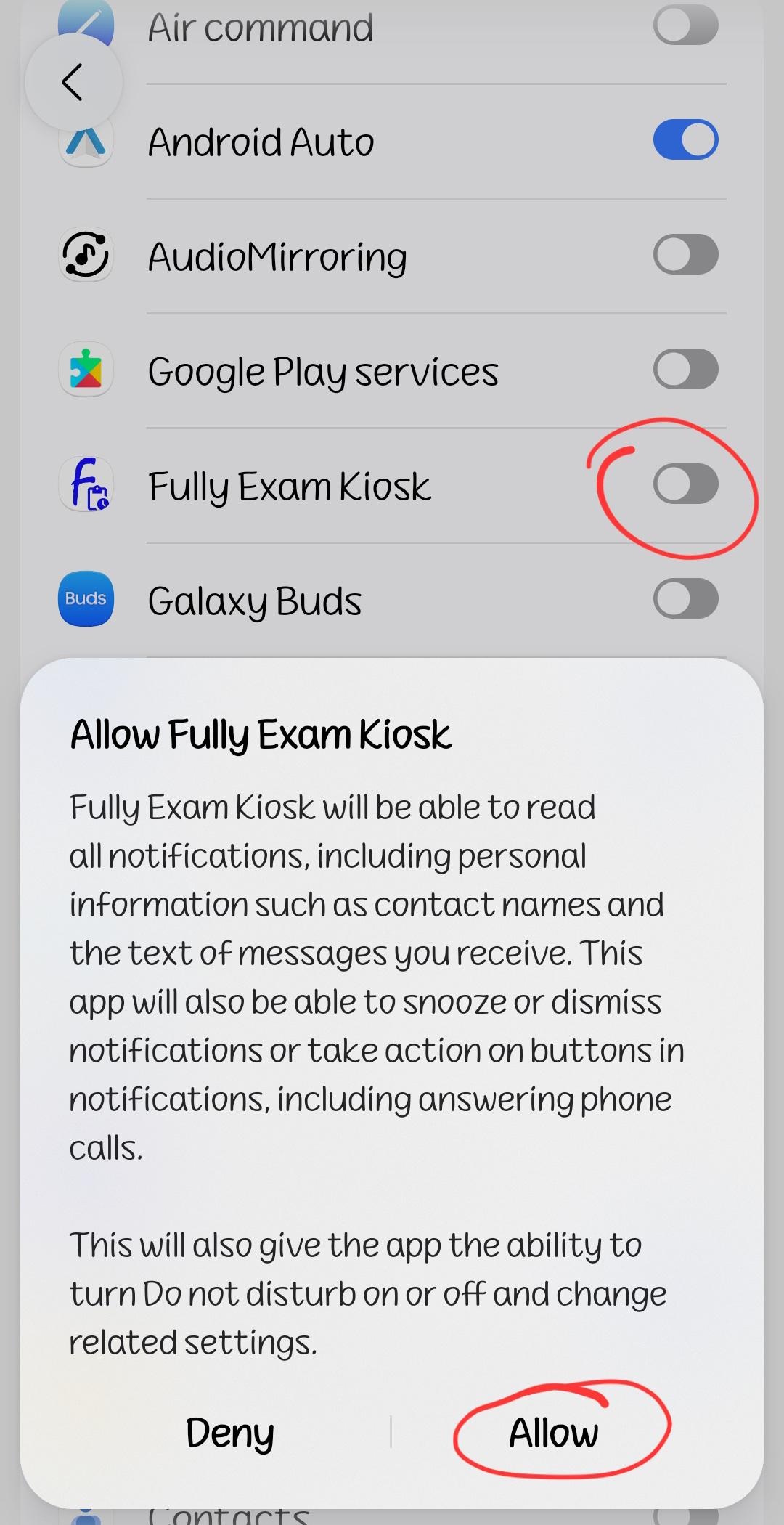
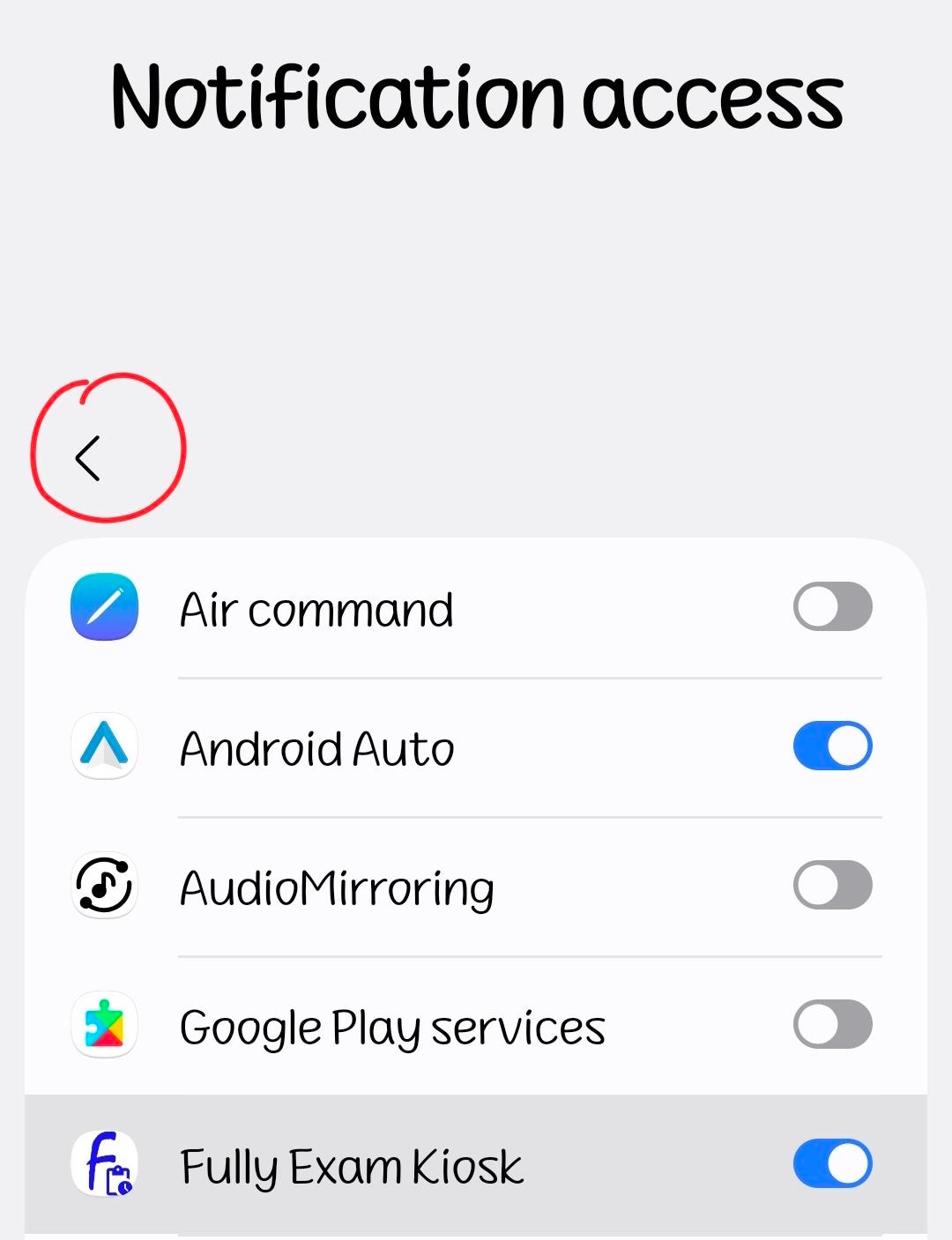
Allow notification access — then tap Back
In the Notification access list, find Fully Exam Kiosk, switch it on and tap Allow. Then tap the back arrow (top left) to continue with the next permission.
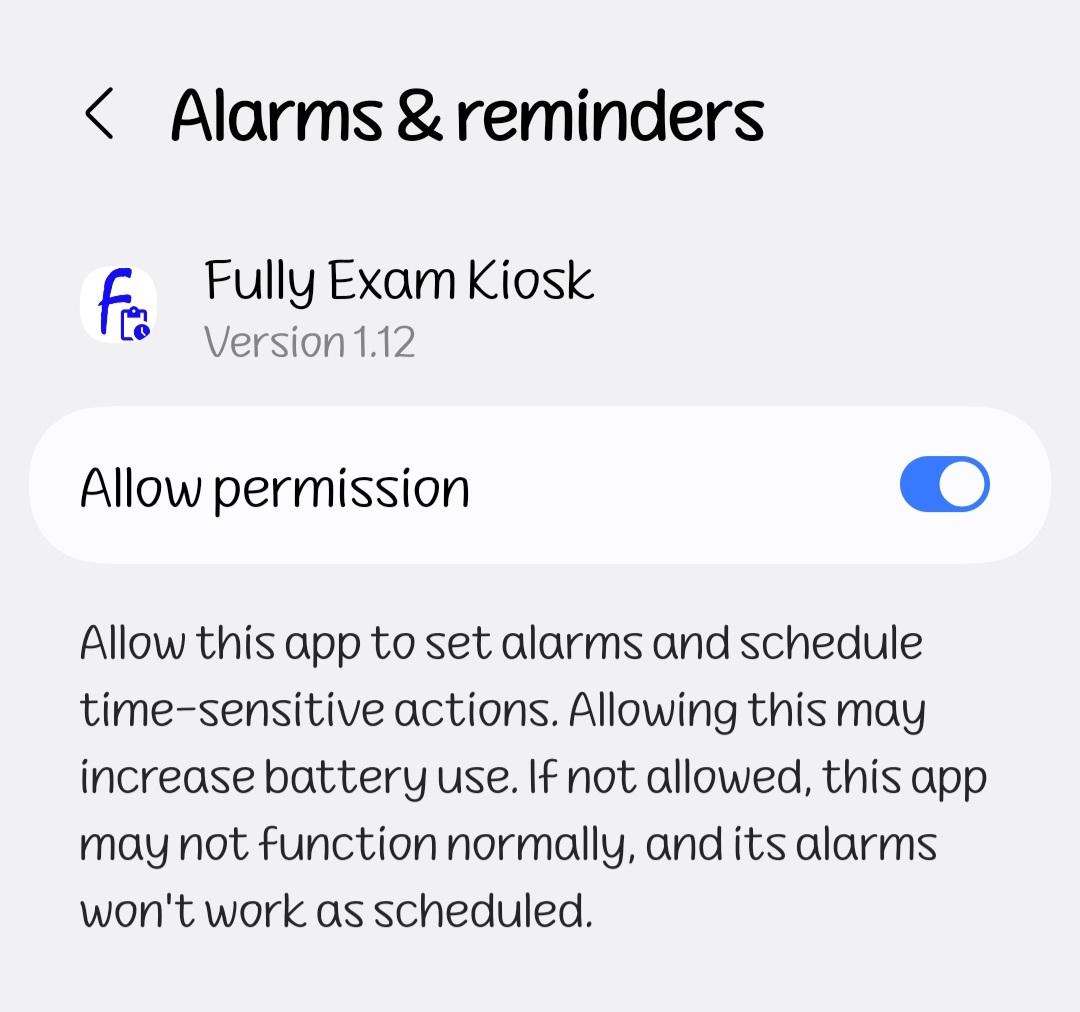
Allow alarms & reminders
On the Alarms & reminders screen, switch Allow permission on, then go back.
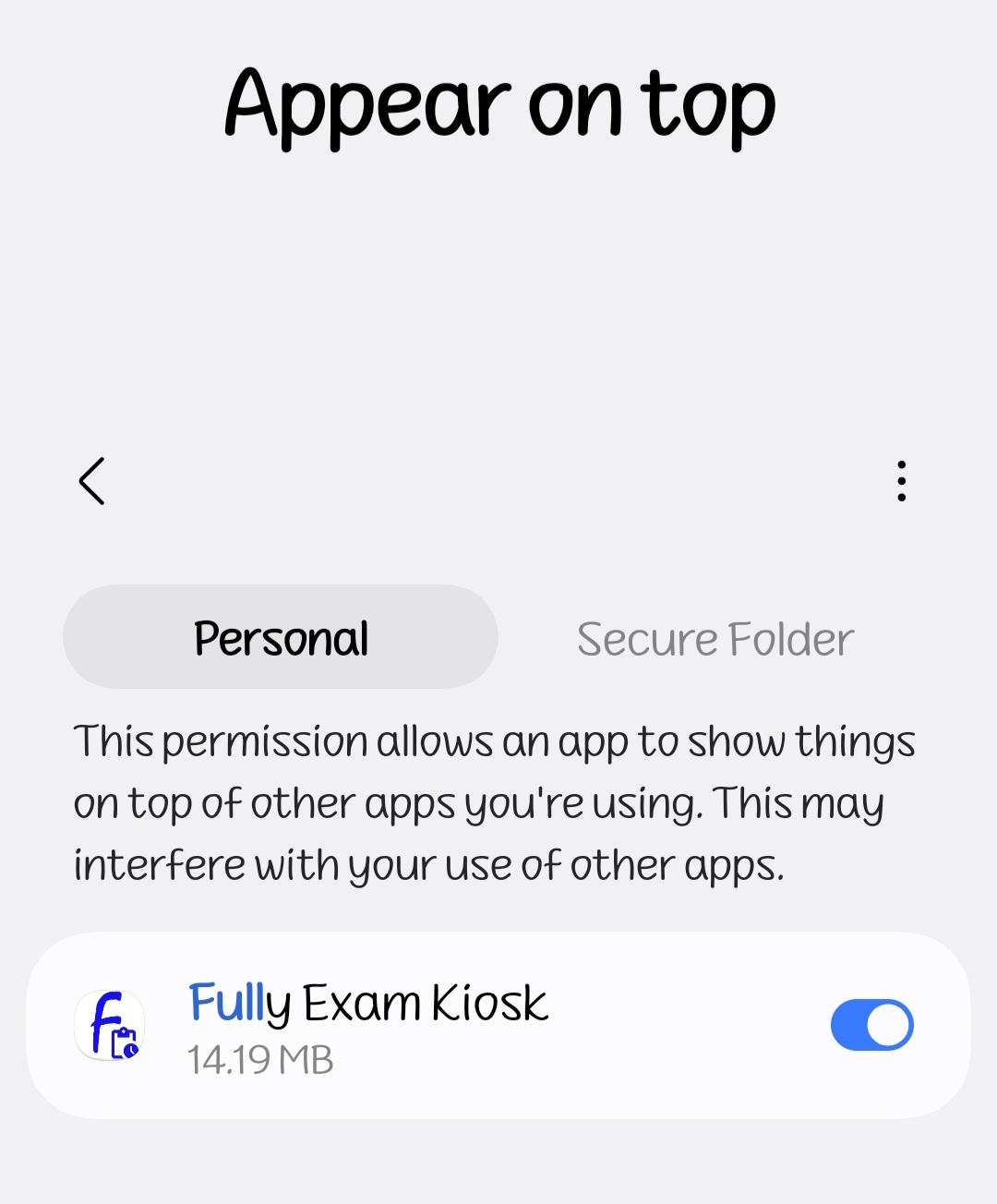
Allow “Appear on top”
On the Appear on top screen, switch the toggle on for Fully Exam Kiosk, then go back.
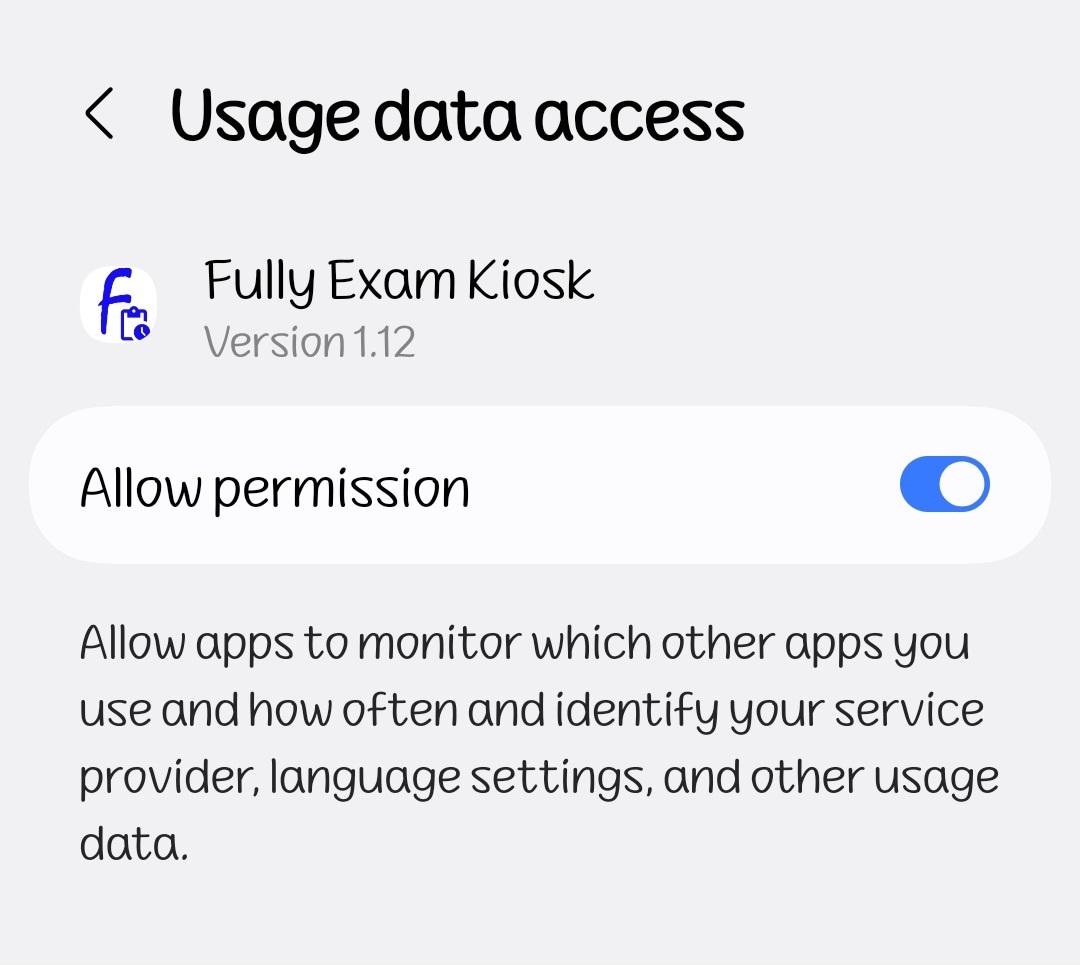
Allow usage data access
On the Usage data access screen, switch Allow permission on, then go back to the app.
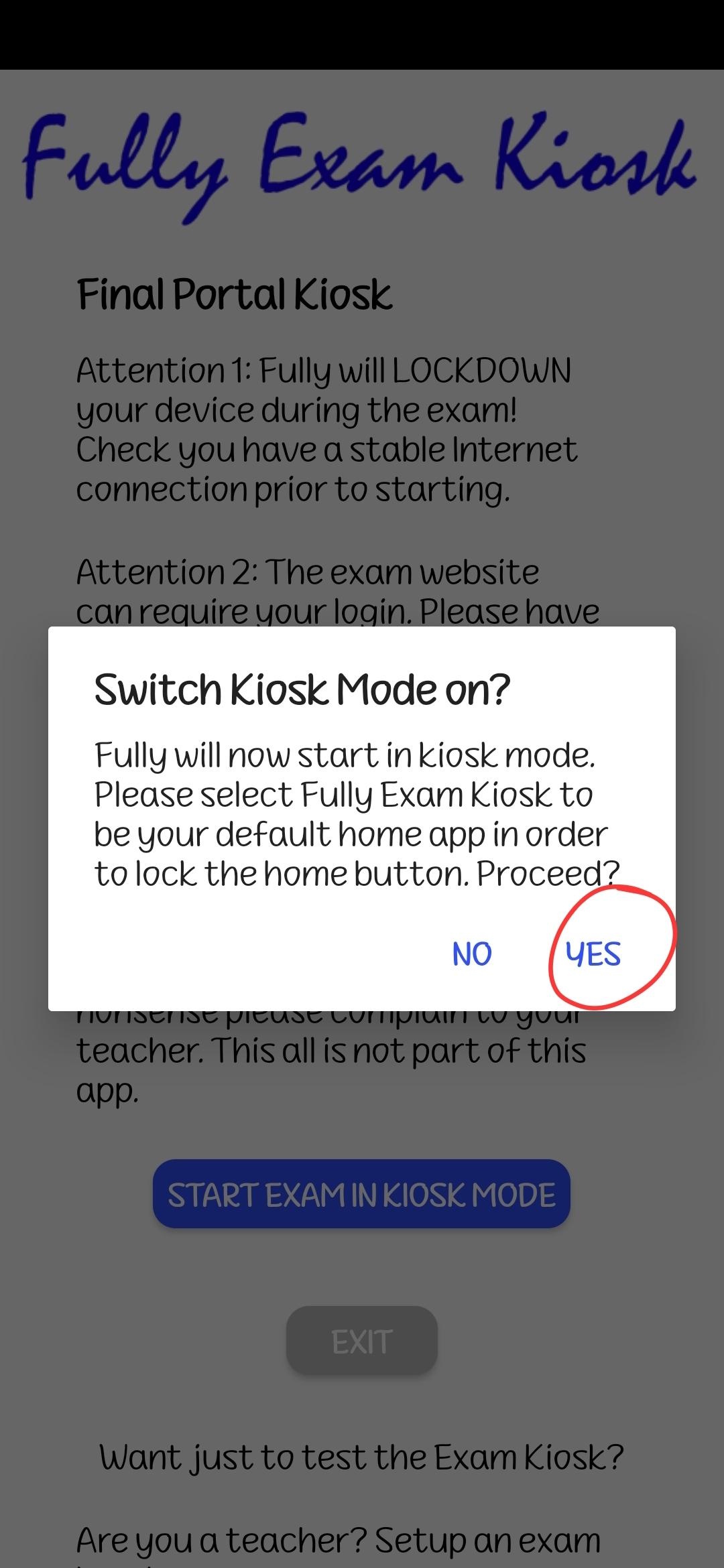
Switch kiosk mode on
Back in the app, tap YES when it asks to switch kiosk mode on.
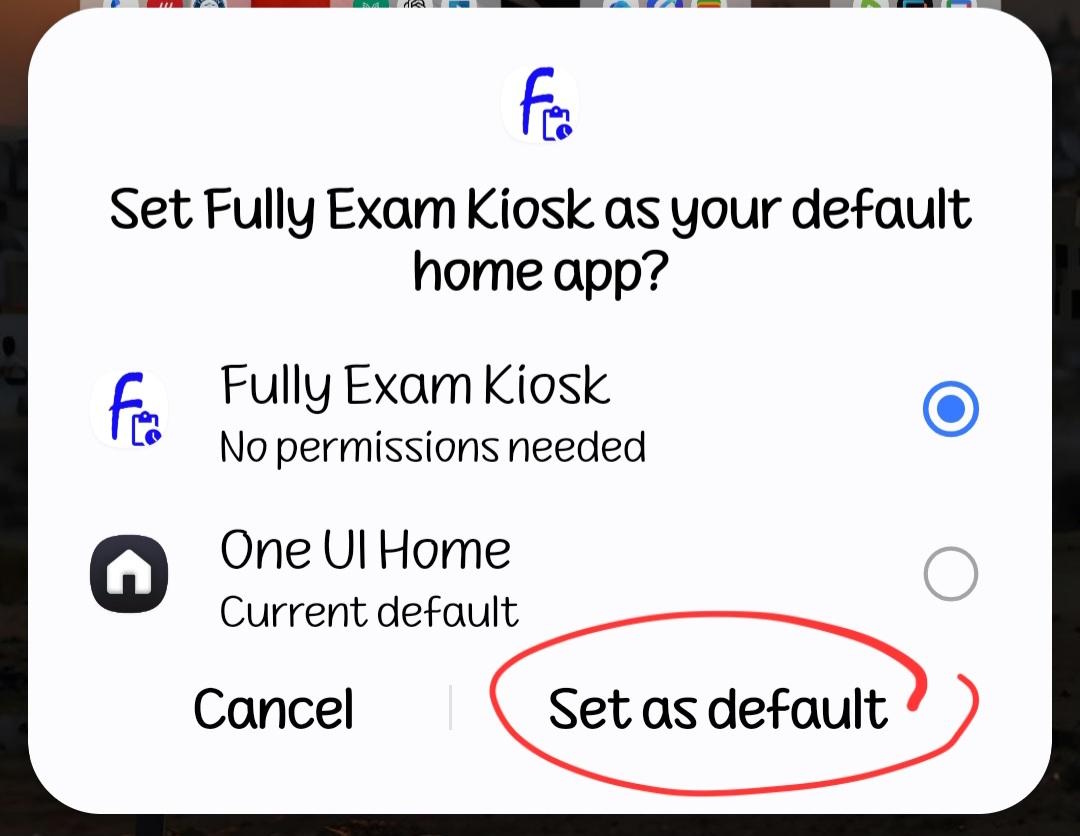
Set it as the home app — and sign in
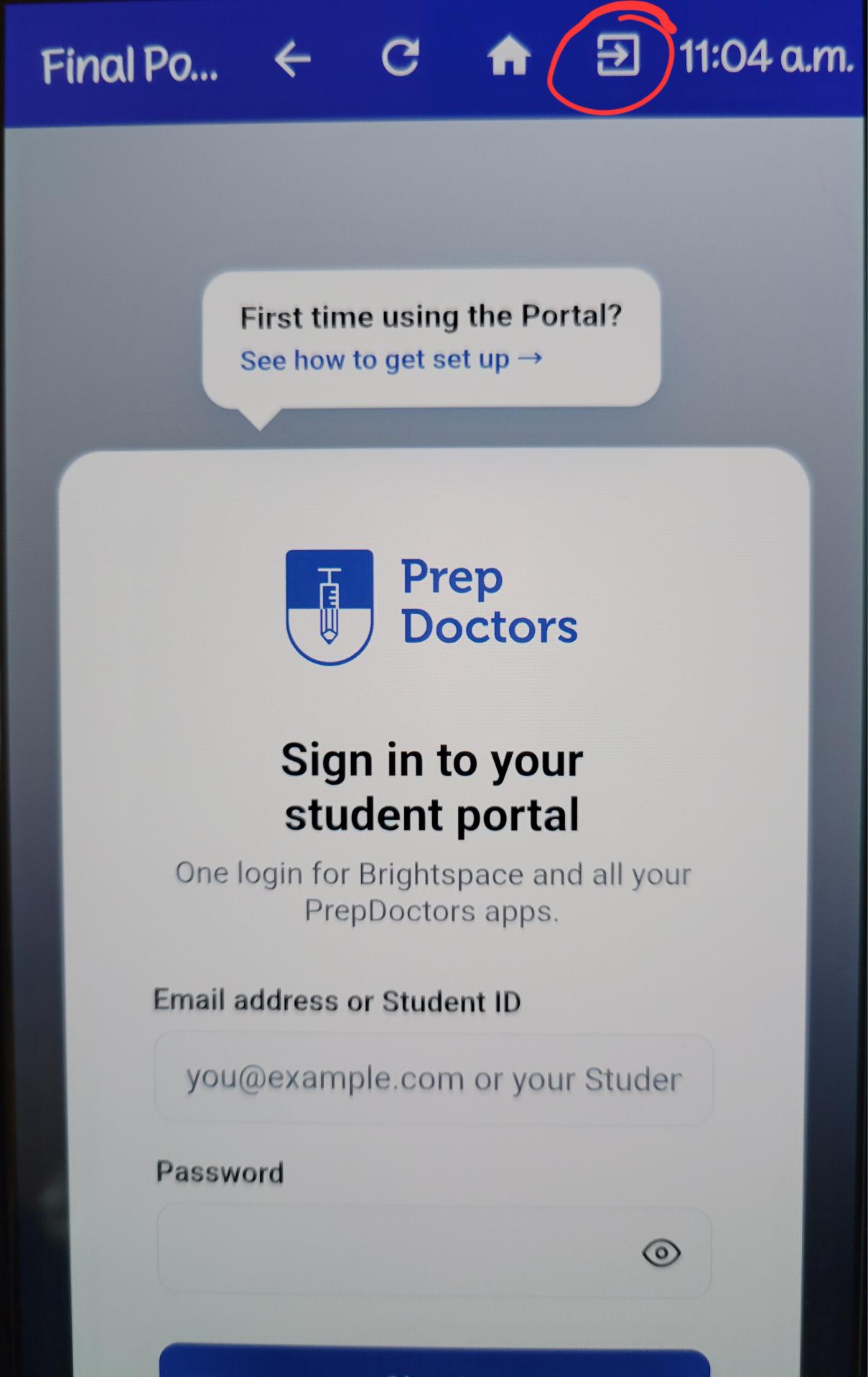
Android asks which home app to use: choose Fully Exam Kiosk and tap Set as default (this locks the home button during the exam). The Student Portal then opens — sign in with your email address or Student ID.
Exiting the kiosk when you're done
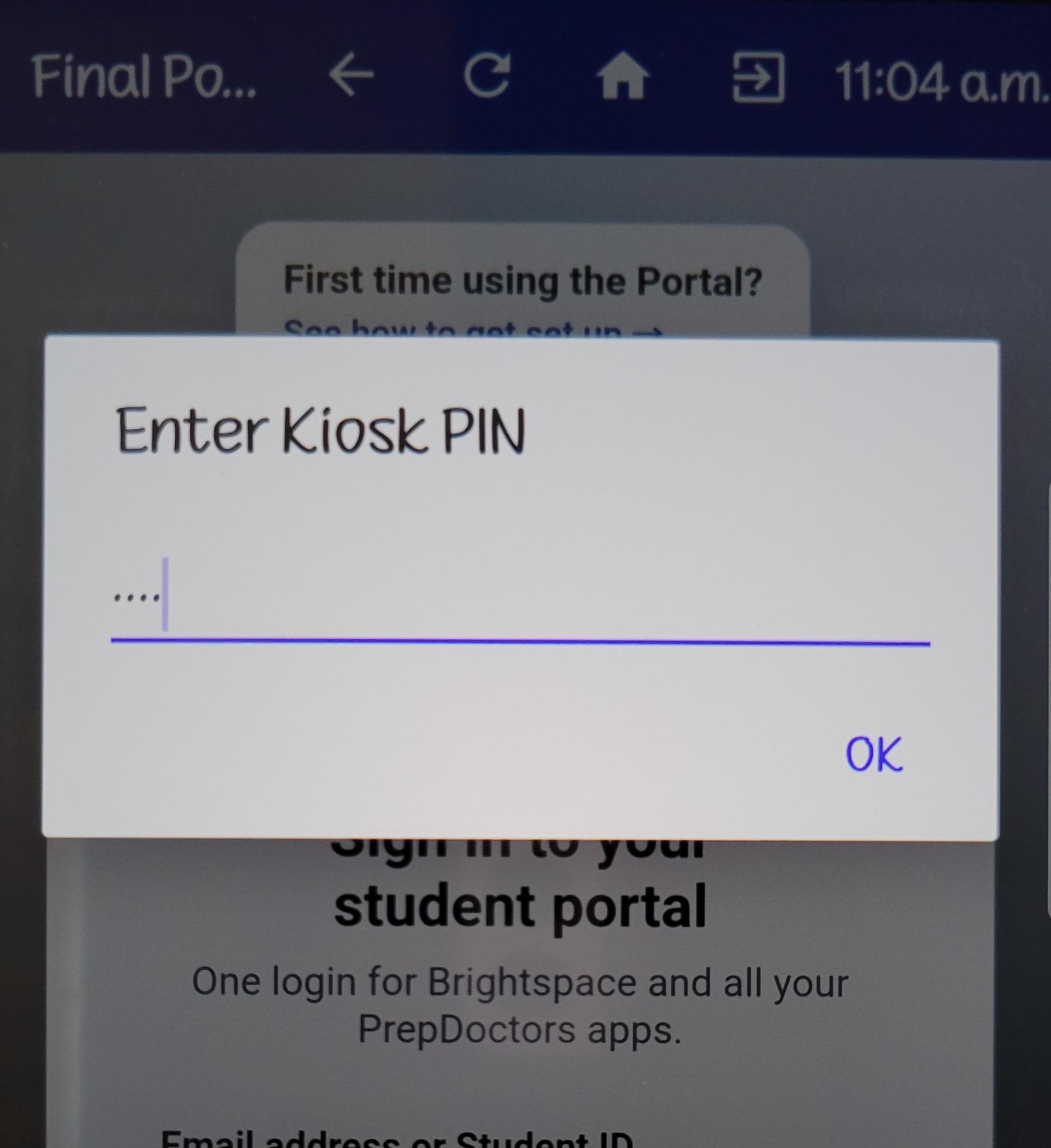
Tap the exit icon in the top-right corner of the kiosk bar, enter the kiosk PIN the PrepDoctors team gave you and tap OK — your device is back to normal.
Questions? After signing in you'll find answers in the Help & FAQ, or contact the PrepDoctors administration team.