
How to use the Student Portal
Set up your exam browser and sign in — step by step for your device.
“Wrong exam configuration”? Your config was updated
When the PrepDoctors team publishes a new exam configuration, your old one stops working: SEB still opens the portal, but shows the page below. Nothing is broken — you just need to switch to the new configuration file.
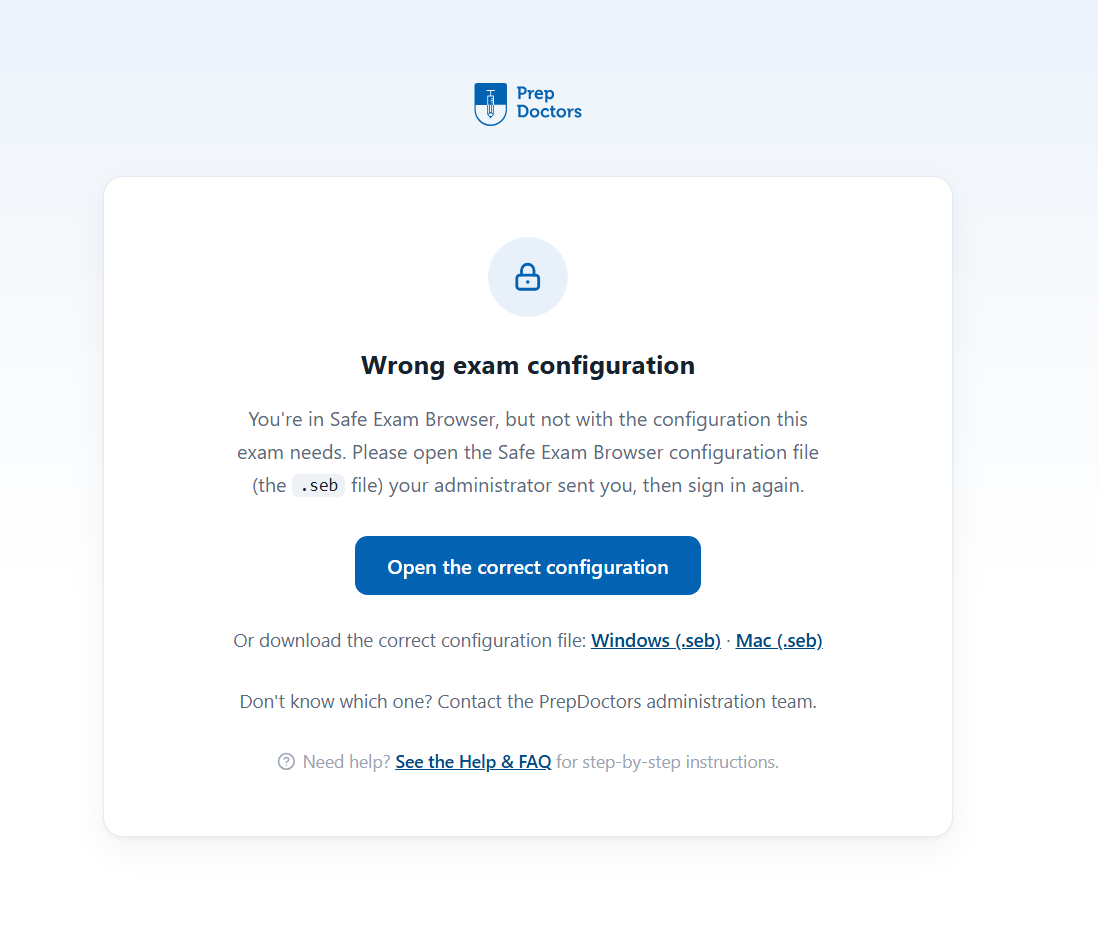
Download the new configuration and open it
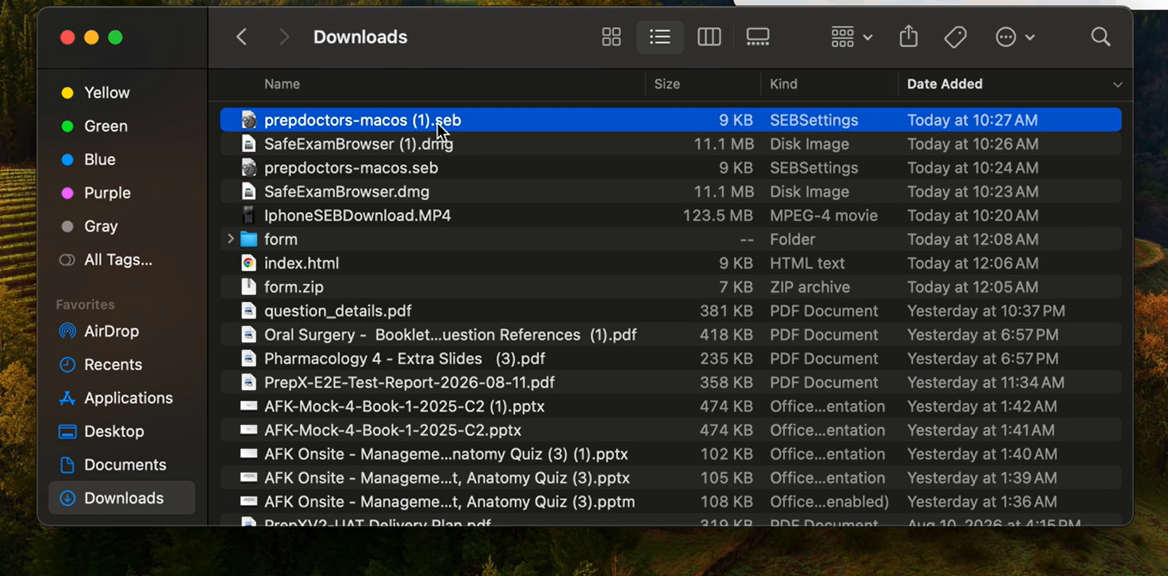
Download the current configuration file, then double-click the downloaded .seb file — no password needed: it launches Safe Exam Browser with the new configuration and takes you straight to the portal, where you sign in as usual.
Download the configuration (.seb)From now on, open SEB through the downloaded file
Don't start Safe Exam Browser from the Applications folder or by searching for “Safe Exam Browser” any more — the app itself still carries your old configuration, so opening it that way lands you back on the “Wrong exam configuration” page. Instead, go to your Downloads folder and double-click the downloaded prepdoctors-macos.seb file whenever you want to open the portal — SEB launches with the new configuration and the portal works as usual.
Questions? After signing in you'll find answers in the Help & FAQ, or contact the PrepDoctors administration team.