
How to use the Student Portal
Set up your exam browser and sign in — step by step for your device.
Seeing this page? You need Safe Exam Browser
If you open the portal in a normal browser (Safari, Chrome…), you'll see the “Open this portal in Safe Exam Browser” page below. That's not an error — for security, exams and their materials only open inside Safe Exam Browser (SEB). The steps on this page get you set up; once SEB is installed and configured you won't see it again.
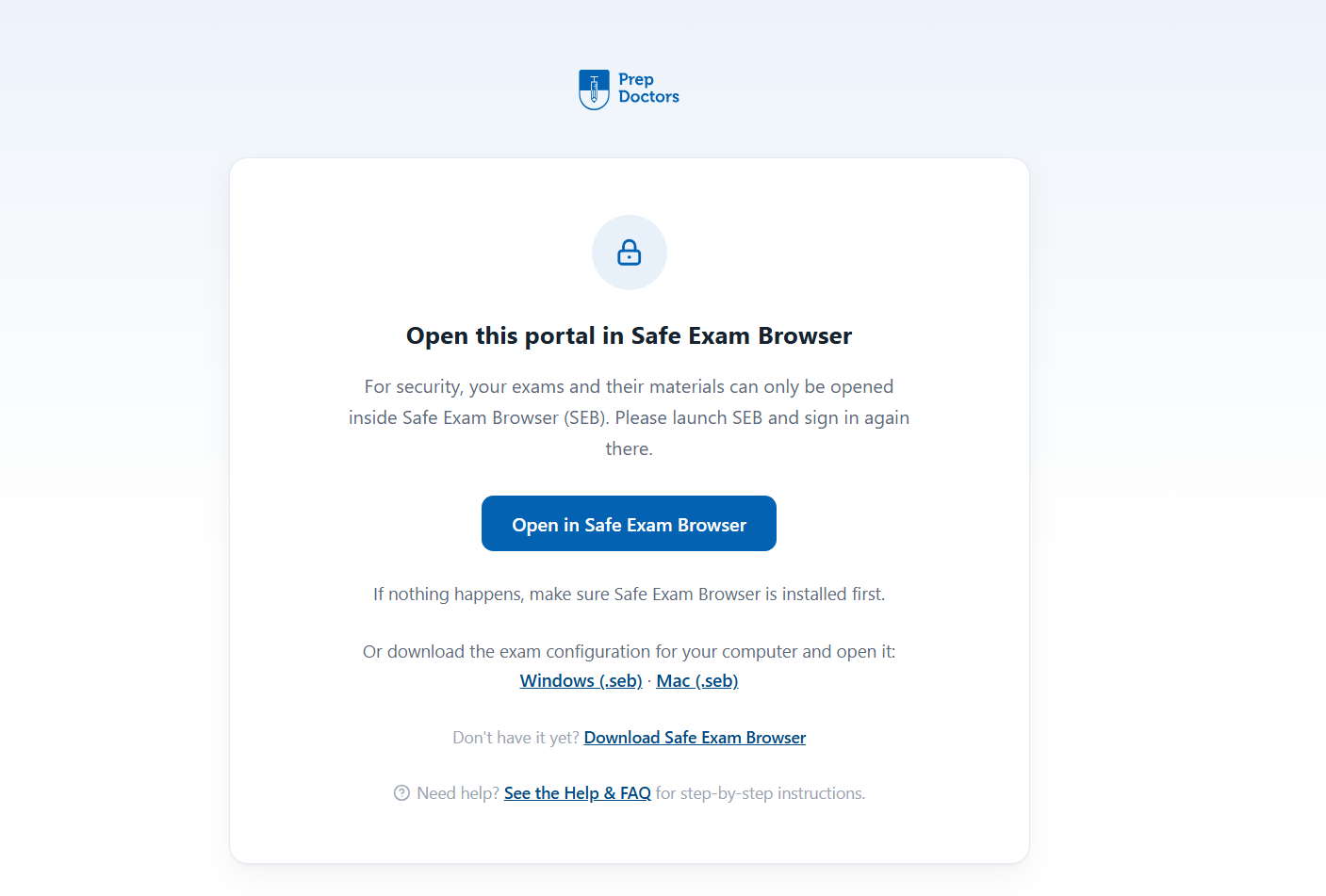
Download Safe Exam Browser
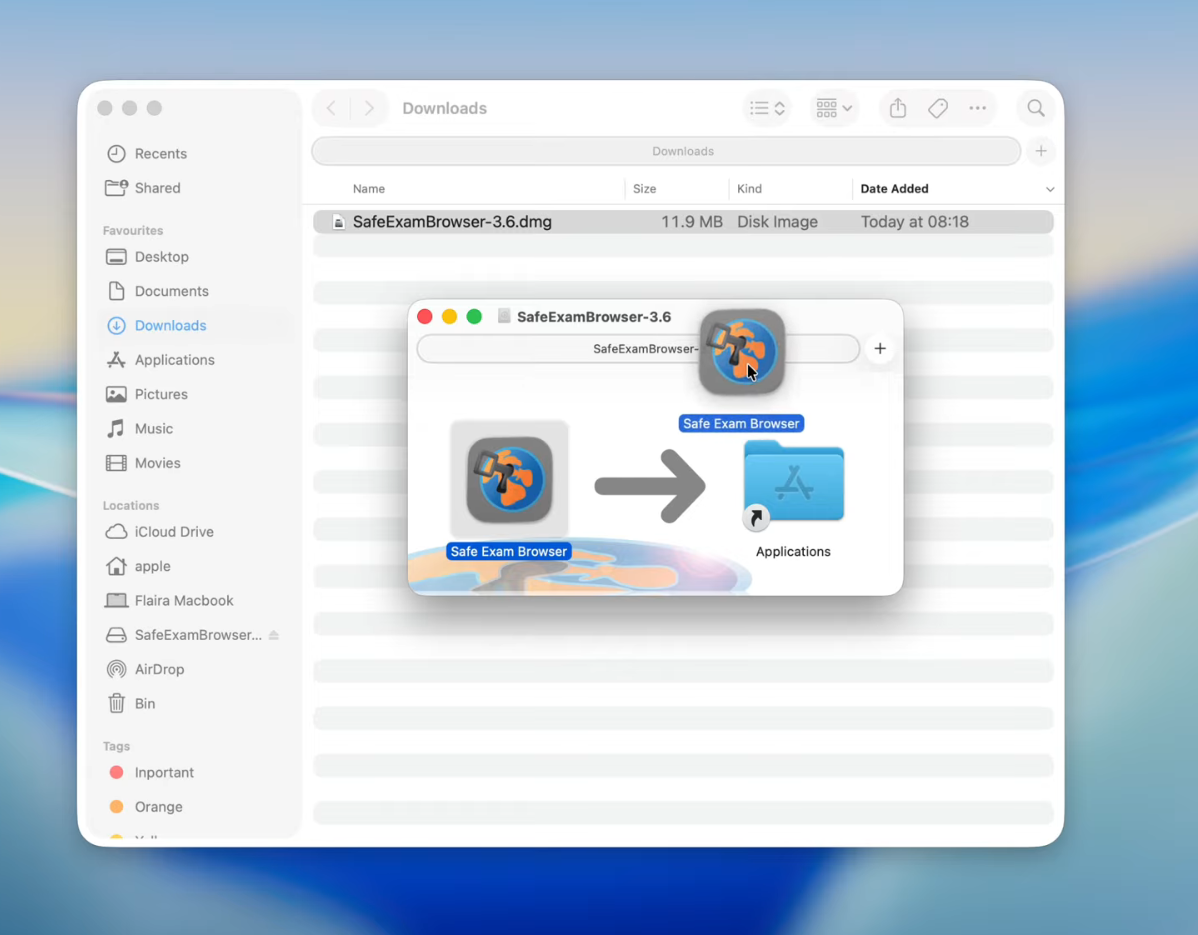
Download Safe Exam Browser straight from the portal — no other website needed. The installer (the SafeExamBrowser.dmg disk image) lands in your Downloads folder.
Download Safe Exam Browser for macOSInstall SEB
Double-click the downloaded SafeExamBrowser.dmg in your Downloads folder. In the window that opens, drag the Safe Exam Browser icon onto the Applications folder — that installs it.
Set up the exam configuration
Download the PrepDoctors configuration file, then double-click the downloaded .seb file — it sets Safe Exam Browser up for the Student Portal.
Download the configuration (.seb)Open SEB and sign in
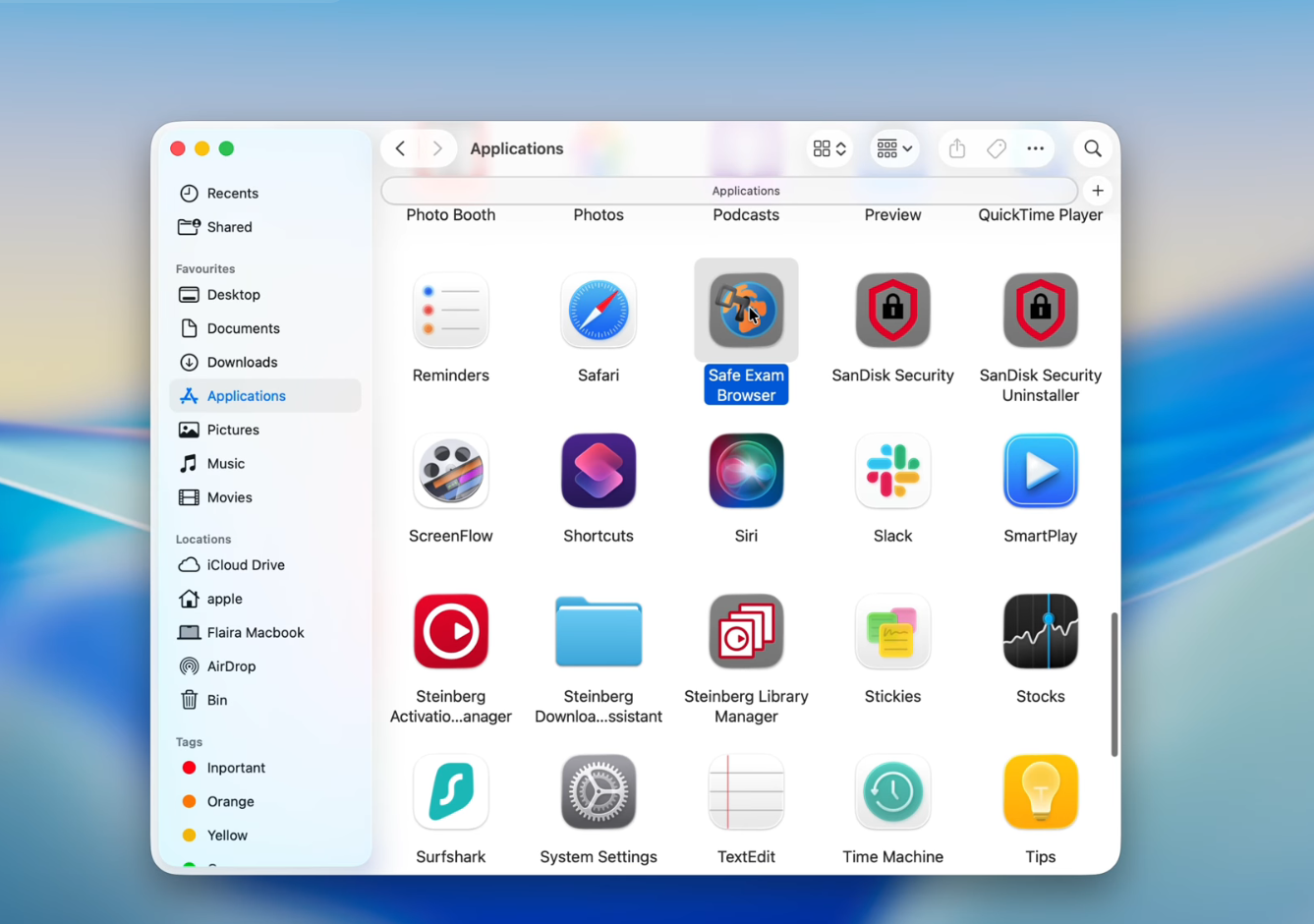
Open your Applications folder (or press ⌘ space and search for “Safe Exam Browser”) and open Safe Exam Browser. The Student Portal opens automatically — sign in with your email address or Student ID.
Quitting SEB when you're done
To leave Safe Exam Browser, use its Quit button (or press ⌘ Q). SEB asks for a quit password — type:
exit
and confirm. Your Mac is back to normal.
Questions? After signing in you'll find answers in the Help & FAQ, or contact the PrepDoctors administration team.