
How to use the Student Portal
Set up your exam browser and sign in — step by step for your device.
Choose your course
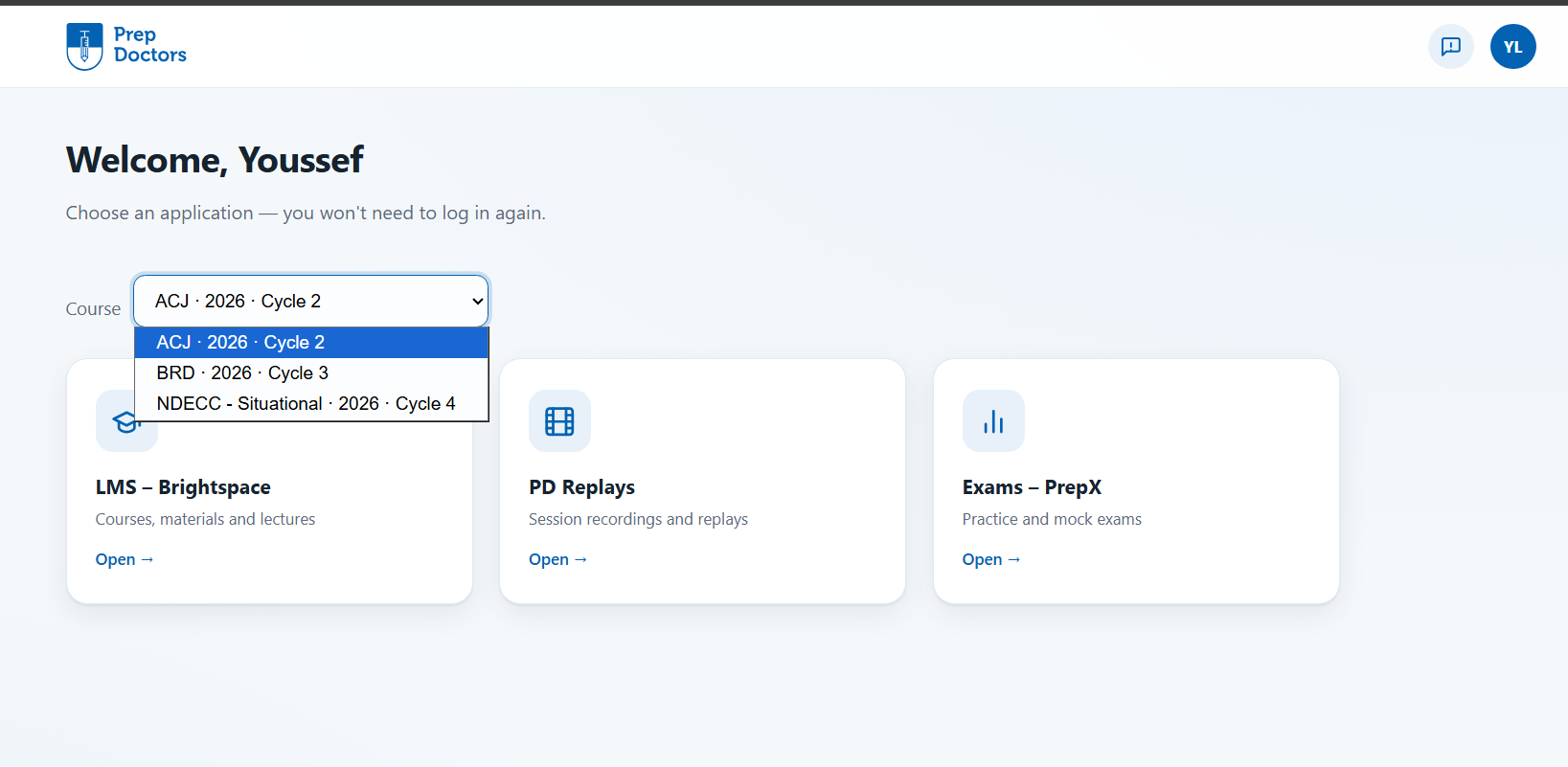
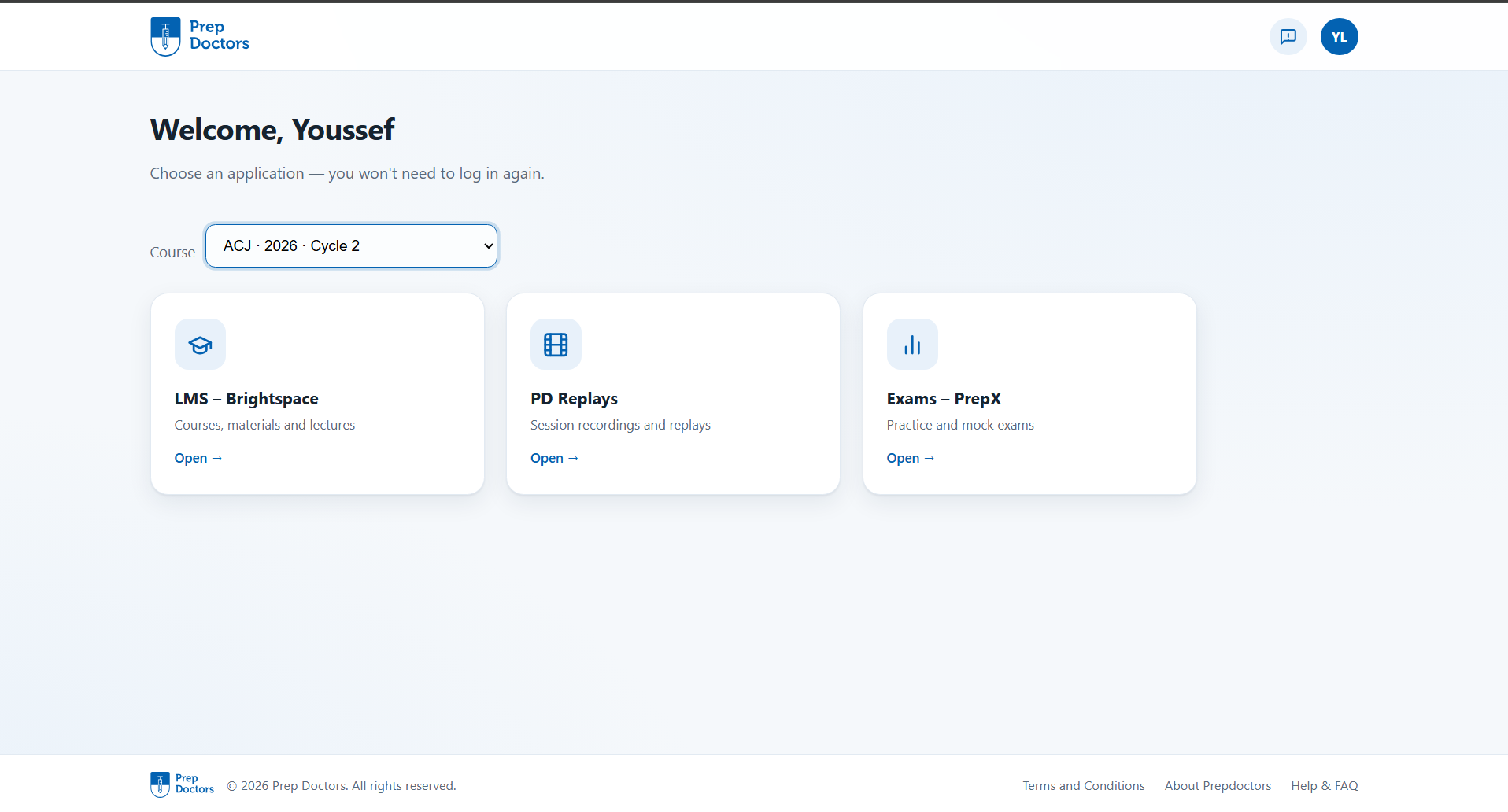
After signing in you land on the Portal home page. If you're enrolled in more than one course, use the Course selector at the top — everything below it updates to the course you pick.
Open an app — no second login
The cards on the home page (LMS, PD Replays, Exams…) depend on what your selected course includes. Click a card and you're signed in automatically — no second login — and can continue in that app right away.
Going back to switch apps
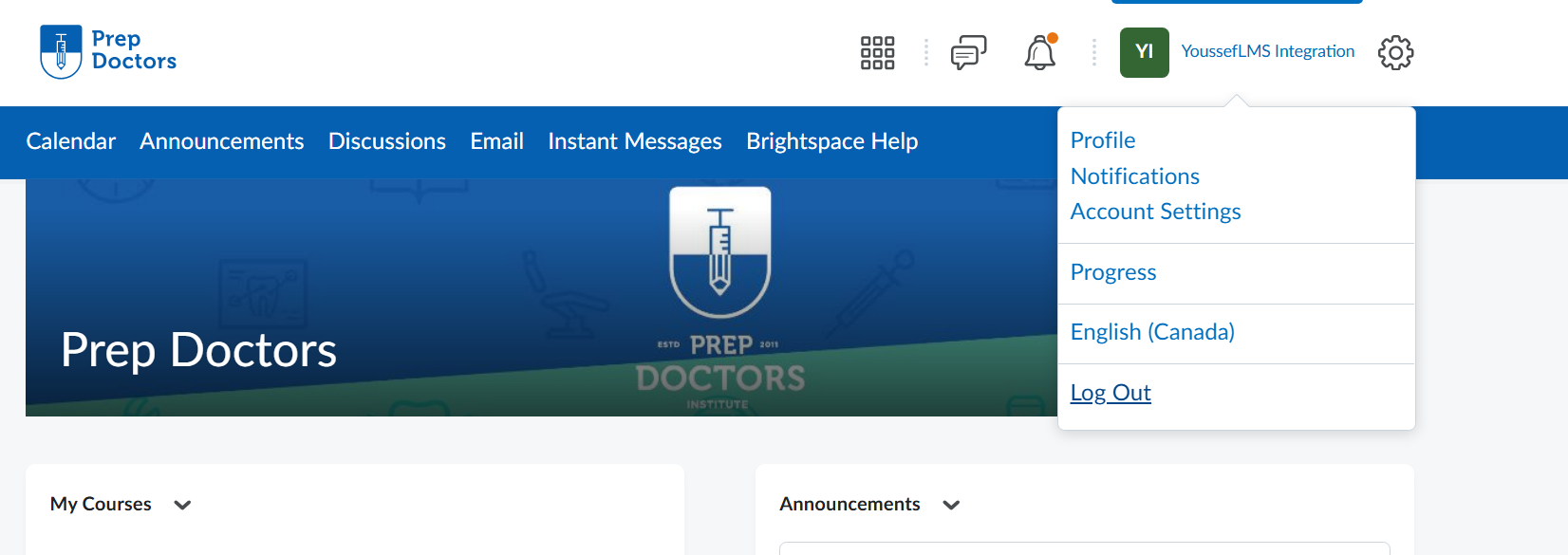
To return to the Portal home page and open another app, use the app's own Log Out button — you'll find it under your name or profile picture. Logging out of the app brings you straight back to the Portal home, and you stay signed in to the Portal — just pick the next card.
Questions? After signing in you'll find answers in the Help & FAQ, or contact the PrepDoctors administration team.