
How to use the Student Portal
Set up your exam browser and sign in — step by step for your device.
Seeing this page? You need Safe Exam Browser
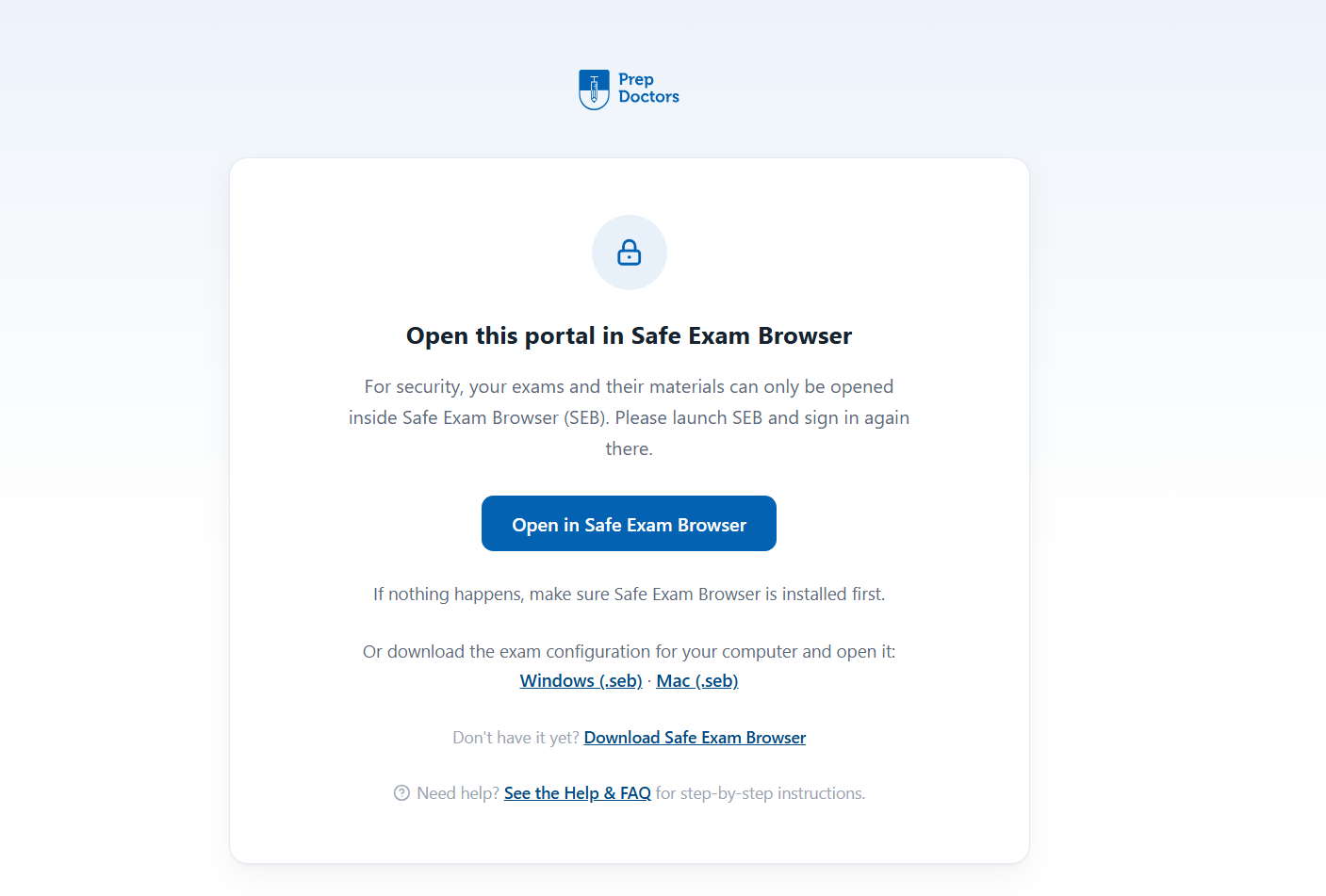
If you open the portal in a normal browser (Safari, Chrome…), you'll see the “Open this portal in Safe Exam Browser” page below. That's not an error — for security, exams and their materials only open inside Safe Exam Browser (SEB). The steps on this page get you set up; once SEB is installed and configured you won't see it again.
Download Safe Exam Browser
Download Safe Exam Browser straight from the portal — no other website needed. The installer (SEB_SetupBundle.exe) lands in your Downloads folder.
Download Safe Exam Browser for WindowsInstall SEB
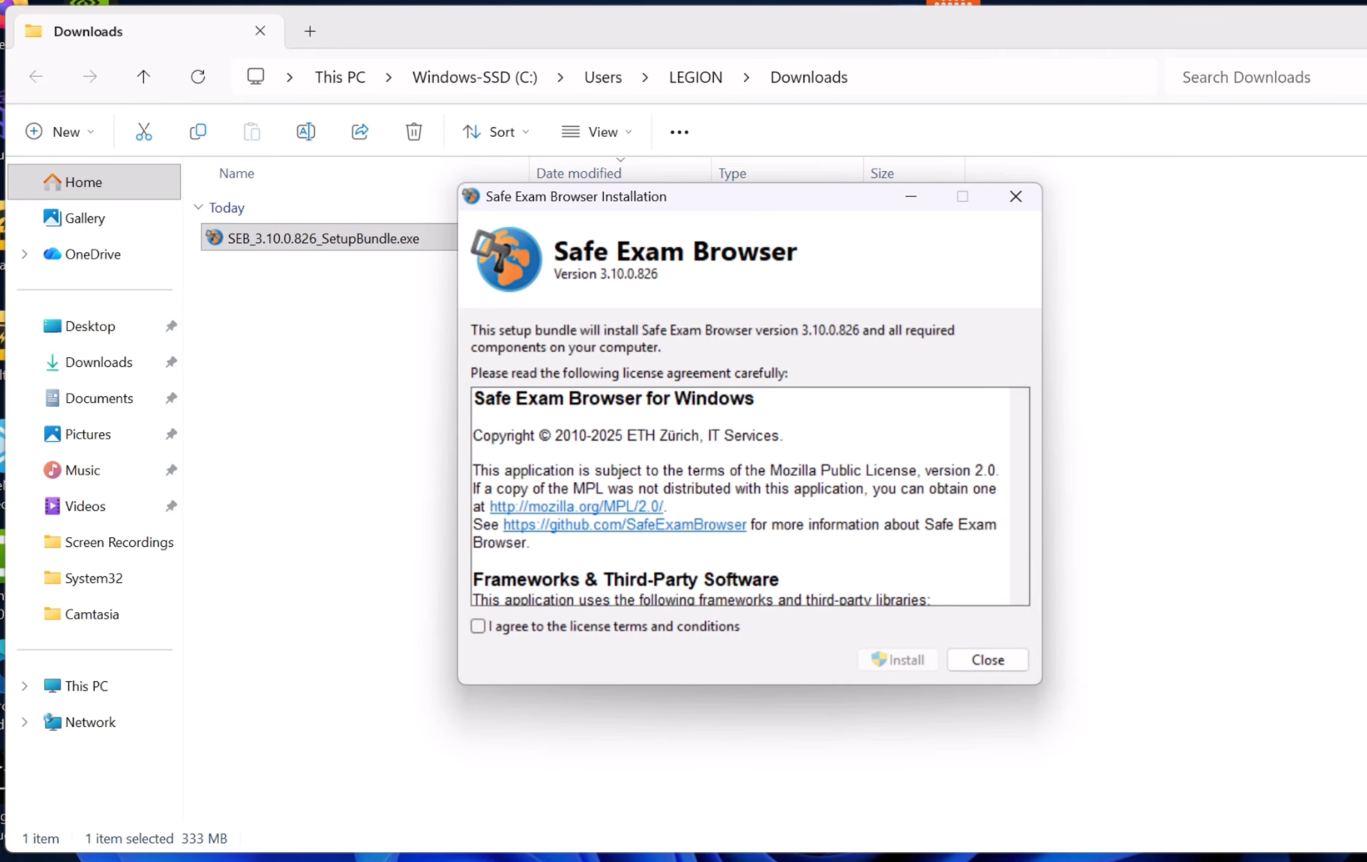
Double-click the downloaded SEB_SetupBundle.exe in your Downloads folder. In the installer window, tick “I agree to the license terms and conditions” and click Install — allow the Windows security prompt if one appears, then wait for the setup to finish.
Set up the exam configuration
Download the PrepDoctors configuration file, then double-click the downloaded .seb file — it sets Safe Exam Browser up for the Student Portal.
Download the configuration (.seb)Open SEB and sign in
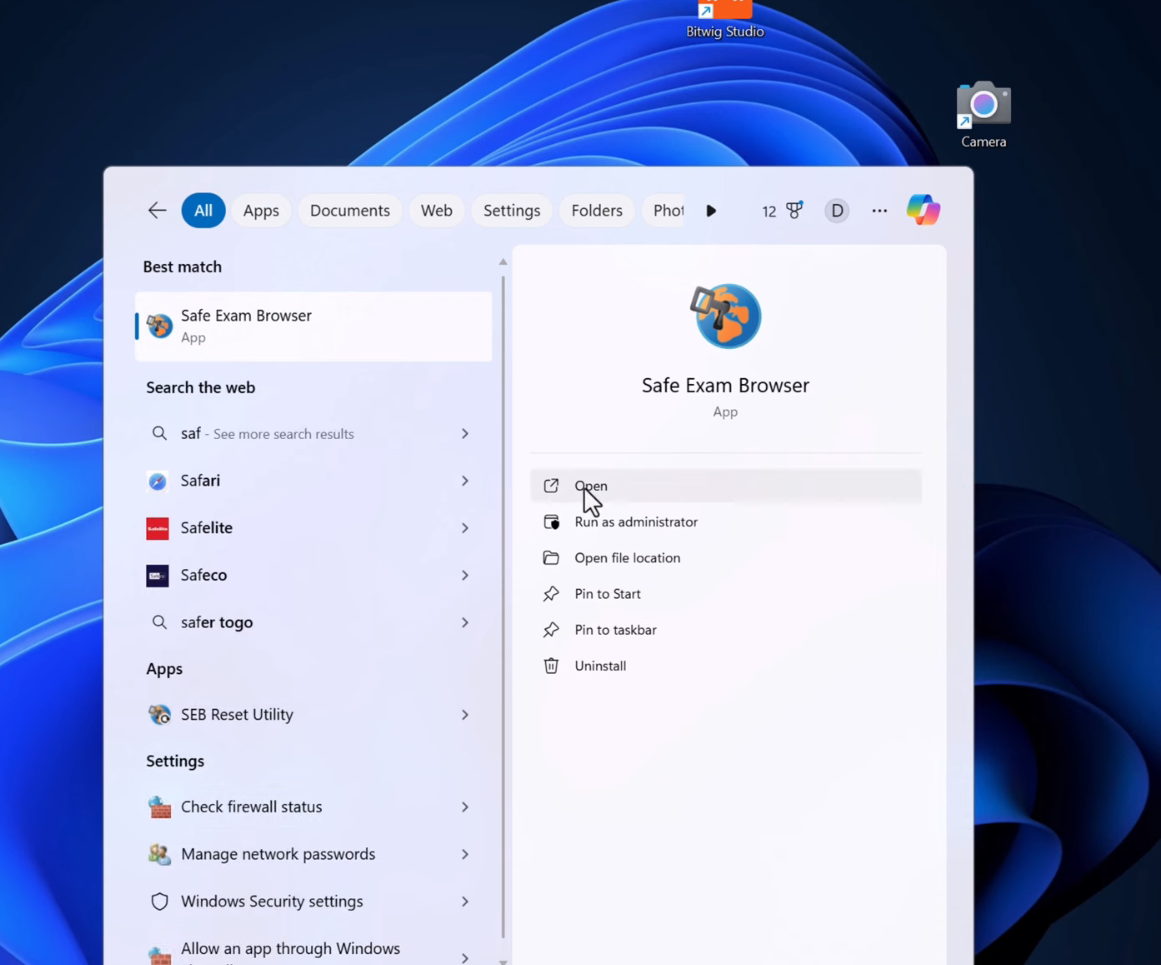
Press the Windows key (or open the Start menu), type “Safe Exam Browser” and open the app. The Student Portal opens automatically — sign in with your email address or Student ID.
Quitting SEB when you're done
To leave Safe Exam Browser, use its Quit button (or press Ctrl + Q). SEB asks for a quit password — type:
exit
and confirm. Your PC is back to normal.
Questions? After signing in you'll find answers in the Help & FAQ, or contact the PrepDoctors administration team.